Adding & editing a product
Adding a product and editing one use the same form, so anything here applies to both.
Where to find it
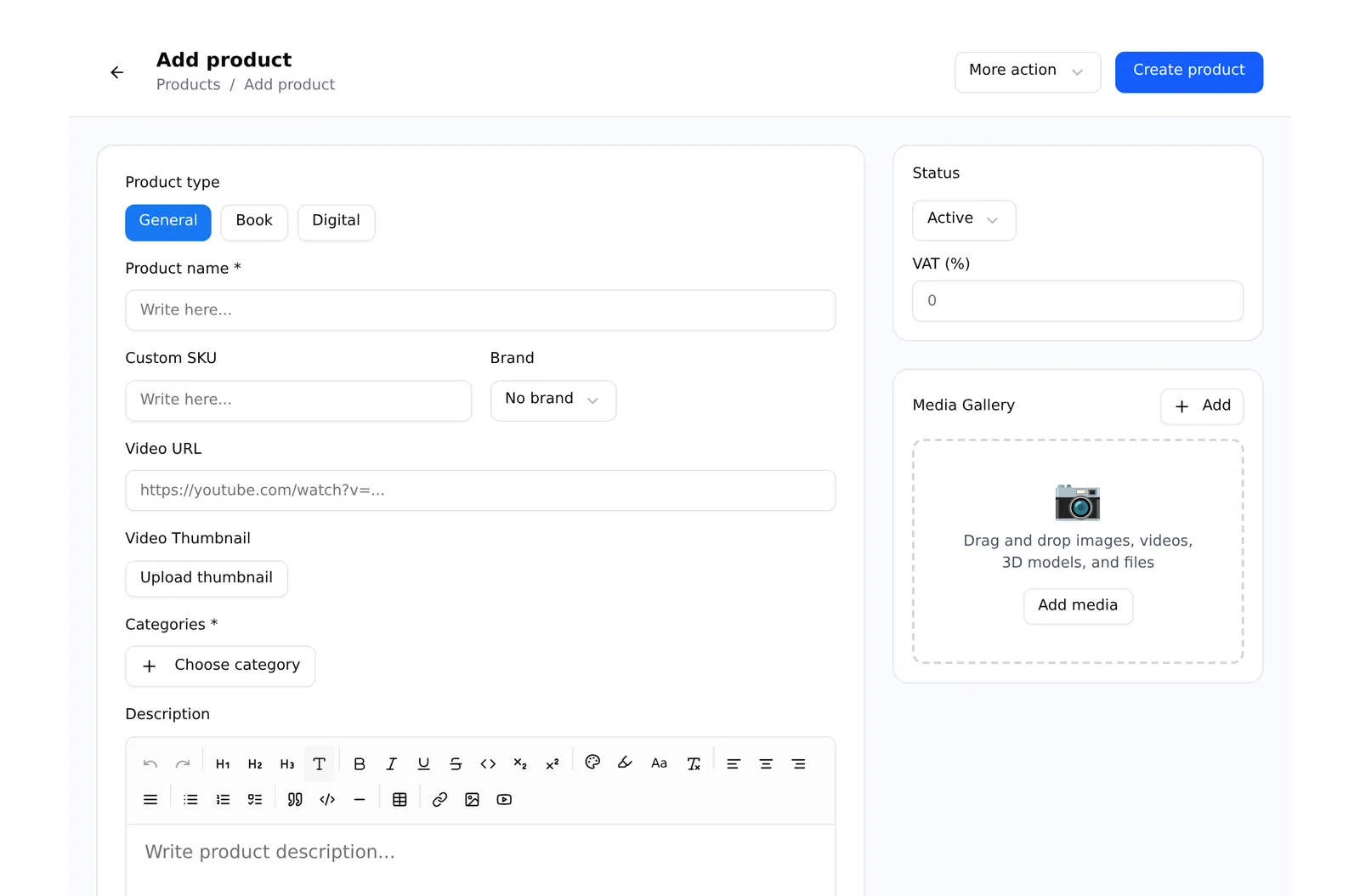
Sidebar → Products → All Products, then Add product at the top right. To edit, click any product in the list.
The essentials
Fill these in and you can publish:
- Product name — what customers see. Also becomes the web address unless you override it in the SEO section.
- Categories — at least one is required. A product with no category cannot be browsed to.
- Price — leave this empty only if the product has variants, in which case each variant carries its own price.
- Photos — drag them into the Media Gallery. The first image is the one shown in listings; drag to reorder if you want a different one first.
Press Create product and it is live.
The rest of the form
Product type — General for physical goods, Book, or Digital for files customers download. Most shops only ever use General.
Custom SKU — your own stock code. Leave it blank and one is generated.
Brand — optional. You can create a brand inline without leaving the form.
Description — the full text on the product page. Supports headings, lists, images and tables.
Discounted price — set this and the original price shows struck through. Leave it empty if the product is not on sale.
Quantity — how many you have. When this hits zero the product shows as out of stock.
Purchase price — what you paid. Never shown to customers; it is there so profit reporting is accurate.
Specifications — a table of name/value pairs, for things like material or dimensions.
Pre-order (advance payment) — lets customers order before you have stock.
Delivery charge per quantity — charges shipping per unit rather than per order. Useful for heavy items.
Search engine listing (on a saved product, the SEO tab) — the page title and description Google shows. Worth filling in for your best sellers. An SEO check with a score from 0 to 100 sits underneath and tells you what to fix — see SEO check & SEO health.
Related products — what appears under “You may also like”.
Letting AI help
- AI assist at the top of the form writes the title, description and SEO text, and makes or edits pictures — even before the product is saved.
- Create with AI fills the whole form from a name, a few facts and a photo.
- Write with AI in the product list writes descriptions for many products at once.
Each button shows its cost in AI credits, and nothing is saved until you press Create product or Update product. See Writing with AI and AI images.
Editing an existing product
The same form, with two extras in More action:
- Duplicate — copy this product into a new draft
- Delete — remove it
Deleting a product that already appears on past orders does not change those orders; they keep their own record of what was bought.
Common problems
“I cannot publish — it says a field is required.” Almost always a missing category, or a variant product where one combination has no price. The form scrolls to the field it is unhappy about.
“My photos uploaded but the listing shows the wrong one.” Listings use the first image. Drag your preferred photo to the front of the Media Gallery.
“The price shows as 0.” The price field is empty. If this product uses variants, set the price on each variant instead — the product-level price is ignored once variants exist.