Billing & plans
Your plan decides how many orders and products you can have, and which features appear at all. This is also where you renew before it expires.
Where to find it
Sidebar → Settings → Billing.
| Menu item | What it’s for |
|---|---|
| Plans & Pricing | Compare plans, upgrade, renew |
| Billing History | Past transactions |
| Invoices | Every invoice, and where you pay |
| Package Overview | How much of your plan you have used |
AI credits are separate from these pages. A package can include monthly AI credits, and extra credit packs are bought from AI Studio → Buy credits. See AI Studio & AI credits.
Checking what you have used
Package Overview is the page to open when something stops working.
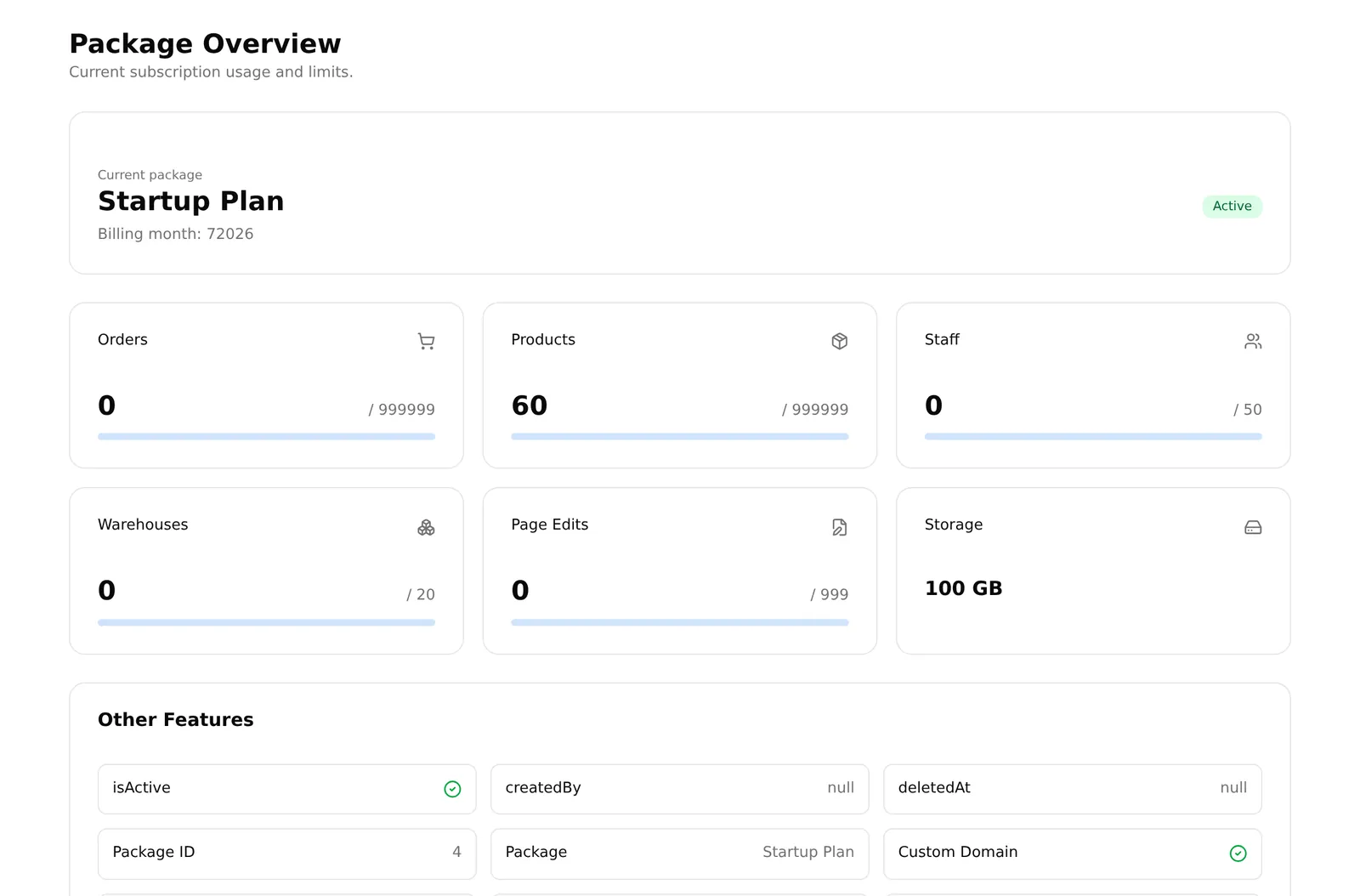
Six figures at the top — Orders, Products, Staff, Warehouses, Page Edits and Storage — each showing used against your limit. “Unlimited” means no cap. Other Features below lists everything else in your plan, with anything you have exhausted marked in red.
These numbers are account-wide and reset each billing month.
Upgrading or renewing
Plans & Pricing shows every plan as a card, with Monthly and Yearly prices. Yearly is cheaper per month, and each card shows how much you save.
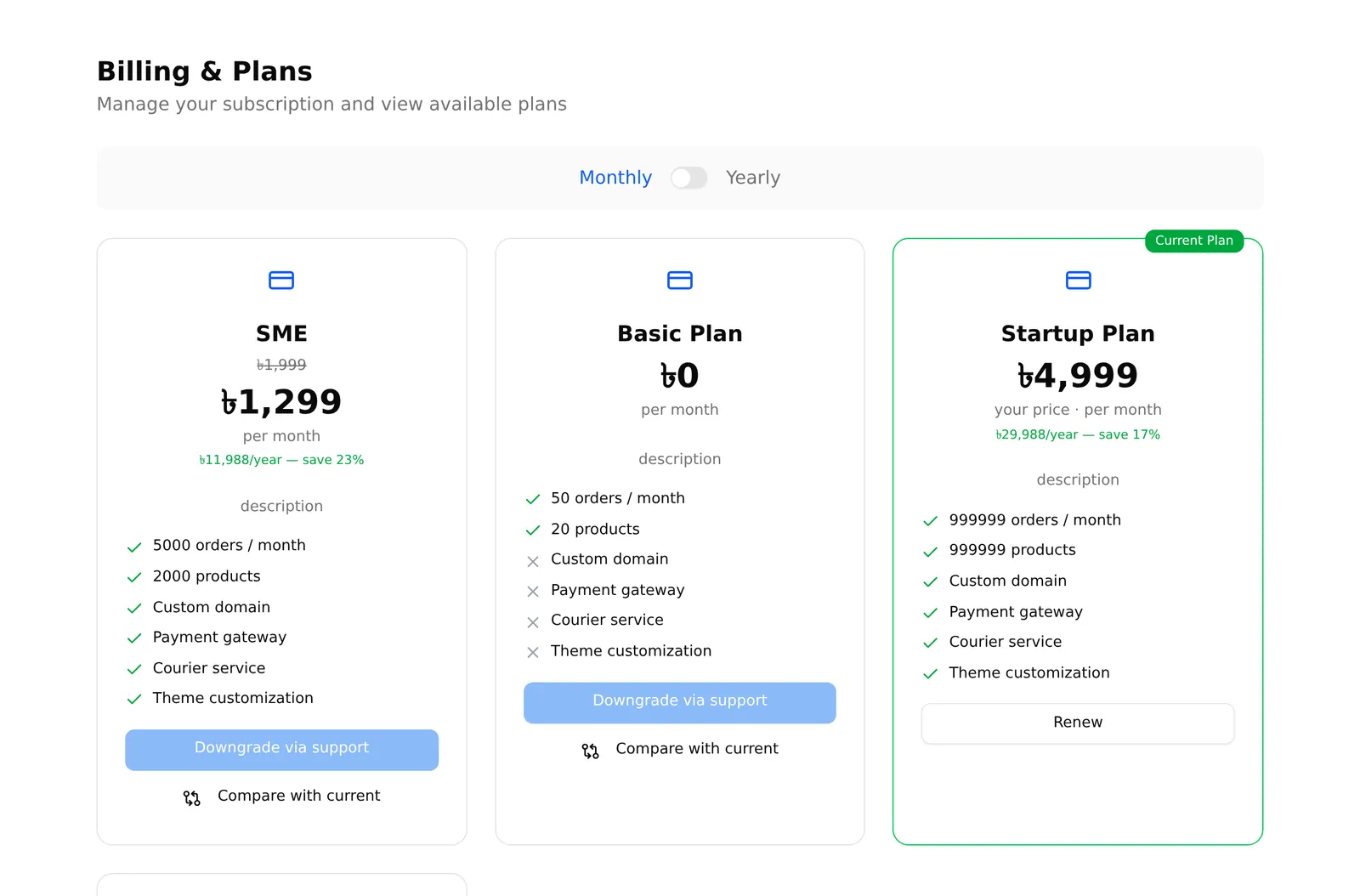
Each card shows six things: orders per month, products, custom domain, payment gateway, courier service and theme customisation. Compare with current opens a fuller side-by-side of fourteen features against your existing plan.
The button on each card depends on where you stand:
| Button | Meaning |
|---|---|
| Renew | Your current plan. Goes straight to payment |
| Upgrade | A bigger plan |
| Select Plan | You have no plan yet |
| Downgrade via support — greyed out | A smaller plan. Contact support; it is not self-service |
Upgrading: Upgrade → Confirm & continue → an invoice is created → you land on that invoice → Pay Now → the secure payment page. Renew skips the middle and takes you straight to payment.
Payment is handled by PayStation.
If your shop has a specially negotiated price, only Renew is available — plan changes go through support. You will also see catalog prices rather than yours if you flip the Monthly/Yearly toggle.
Invoices
Invoices lists everything you owe or have paid: invoice number, package, amount, date, due date, status and method.
Opening one gives you Pay Now (while unpaid) and Print. There is no PDF download — use Print and choose “Save as PDF” for a file to keep or send to your accountant.
Invoices marked Custom were issued to you directly by the BitCommerz team rather than generated by a plan change.
Billing history
Billing History has two tabs:
- Packages — your subscription payments, filterable by status and date range. View on a row opens the full transaction detail.
- Apps & themes — anything you bought from the App Store or Theme Store, each with an Invoice button that opens the invoice in a new tab. Allow pop-ups for this.
The Search box on the Packages tab does nothing — it is unfinished. Use the status and date filters instead; those work.
What happens when your plan expires
There are four stages, and only the last one locks you out.
1. Active — everything works.
2. Warning — the last 7 days. An amber banner appears at the top of the dashboard: “Your package expires in N days.” Everything still works. You can dismiss the banner, and it returns next time you load the dashboard.
3. Grace period — just after expiry. A message tells you the package has expired and how many days of grace remain. You still have full access. The length of the grace period is set by the BitCommerz team and shown to you in that message.
4. Expired. The dashboard is blurred behind a message that cannot be dismissed. Only these pages still work:
- Billing & plans
- Invoices
- Package Overview
- Support
- Billing History
Your storefront keeps running the whole time. Customers can still browse and order — only your access to the dashboard is blocked. Orders keep arriving; you just cannot process them until you renew.
Free plans never expire. If your plan costs nothing, none of this applies.
What “you have reached your limit” means
Three separate things can hide a feature, and the message does not always say which:
- Your plan does not include it — check Package Overview.
- You have used up a numeric allowance — orders, products, staff, warehouses, promotions, bulk-import rows, page edits, fraud checks. Package Overview shows these in red when exhausted.
- The app is not installed — some features are core apps that must be installed from the App Store even when your plan includes them.
Menu items are not hidden on plans that lack the feature — every item shows for everyone. So a missing feature reveals itself as an error or an upgrade prompt when you use it, not as a gap in the sidebar.
Common problems
“I cannot add another product.” Product limit reached. Package Overview shows the number.
“The dashboard is blurred.” Your plan expired and the grace period ended. Renew from Plans & Pricing — that page still works.
“I want to move to a cheaper plan.” Downgrades are handled by support, not by you. The button is deliberately disabled.
“I paid but nothing changed.” Check the invoice status under Invoices. If it still says pending, the payment did not complete — open it and press Pay Now again.
“I cannot download my invoice.” There is no download. Print it and save as PDF.