Orders
Every sale your shop takes arrives here. Most shop owners spend more time on this screen than on any other, so it is worth learning properly.
Where to find it
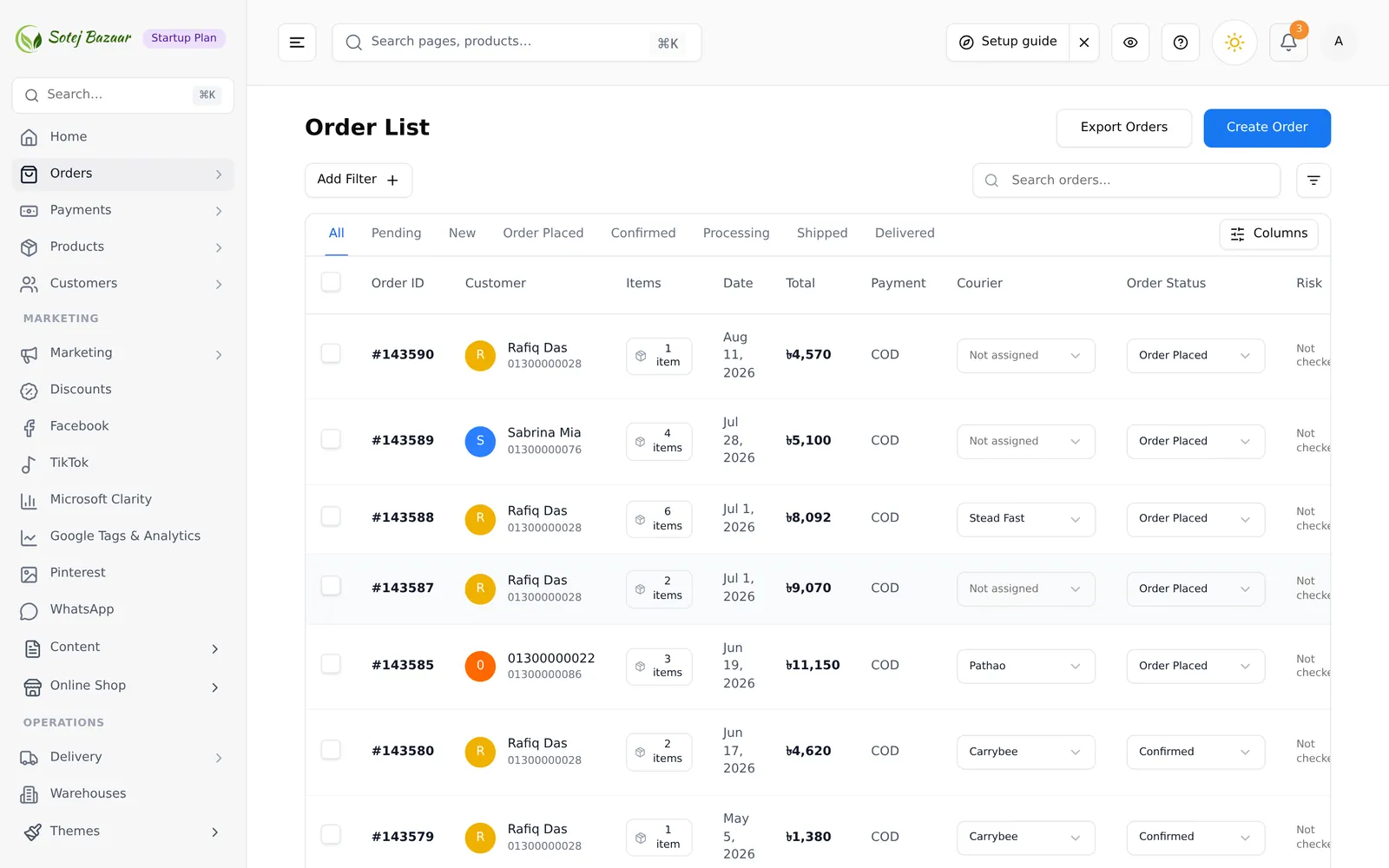
Sidebar → Orders. The menu expands into everything below:
| Menu item | What it’s for |
|---|---|
| All Orders | The full list — search, filter, print, bulk update |
| Draft Orders | Orders you started but have not placed yet |
| Custom Orders | A shortcut to creating an order by hand |
| Abandoned Checkouts | Carts customers left without paying |
| Order Flow | Design your own statuses and automations |
| Fraud Checker | Risk scores on customer phone numbers — see Shipping & delivery |
Sales figures live in their own Analytics group: Analytics → Statistics for charts and trends (Statistics) and Analytics → Order Reports for filterable order data with export (Order reports).
The order statuses
There are ten statuses, and every shop starts with the same set:
| Status | What it means |
|---|---|
| Pending | Placed, nothing done yet |
| New | Placed, not yet looked at |
| Order Placed | Confirmed by the customer at checkout |
| Confirmed | You have accepted the order |
| Processing | You are packing it |
| Shipped | Handed to a courier |
| Delivered | The customer has it |
| Cancelled | Called off |
| Returned | Came back to you |
| Refunded | Money returned |
The first seven are active statuses; Cancelled, Returned and Refunded are closed ones. You are not stuck with these — Order Flow lets you rename them, add your own, and decide which transitions are allowed.
What an order actually contains
Opening an order shows five things, and each is editable after the order was placed:
- Products — what was bought. You can add products or remove them.
- Payment — the totals, plus the delivery charge and discount, both editable.
- Shipping — name, phone, address. Customers mistype these constantly.
- Courier — which delivery company, and a button to send the order to them.
- Notes and logs — an internal chat thread, plus an automatic record of every change and who made it.
Two rules that save money
Change status from the status control, not by editing items. Cancelling or refunding a single line item is a different action from moving the order forward. Keep fulfilment on the order-level status.
Write a reason when you cancel. The cancel dialog offers a note field, and that note goes into the order’s log. Three weeks later, when the customer calls back, it is the only record of why.
Common problems
“An order I know exists is not in the list.” Check the status tab and the date filter. Both reset to showing everything each time you open the page, so if the order is missing you have almost certainly filtered it out during this visit rather than in a previous one.
“I cannot find the order by the number the customer gave me.” Search matches the order ID, the order number, the customer’s name, their phone number, and the payment transaction ID — so any of those will find it. Phone number is the most reliable, because customers read out order numbers wrong.