Your online store
This section is what your customers see: the theme, the colours, the pages and the menus.
Where to find it
Sidebar → Online Store. Everything for your storefront is in this one section, in four groups plus a few single items:
| Menu item | What it’s for |
|---|---|
| Overview | Browse and switch themes |
| Pages → Pages | Pages you build yourself |
| Pages → Default Pages | The layout of built-in pages like Cart and Checkout |
| Design → Appearance | Colours, fonts, logo, menus |
| Design → Headers / Footers | Reusable top and bottom bars |
| Design → Menu Builder | Your navigation menus |
| Themes → Theme Marketplace | The same page as Overview |
| Themes → Purchased Themes | Themes you own |
| Themes → Active Theme | Your current theme, and how to undo a change |
| Checkout Settings | Extra questions to ask at checkout |
| URL Redirects | Send old web addresses to new ones — see Apps |
| Shop Preview | Your storefront across device sizes |
Themes
A theme is your shop’s whole design at once. Changing it replaces your pages, menus and widgets.
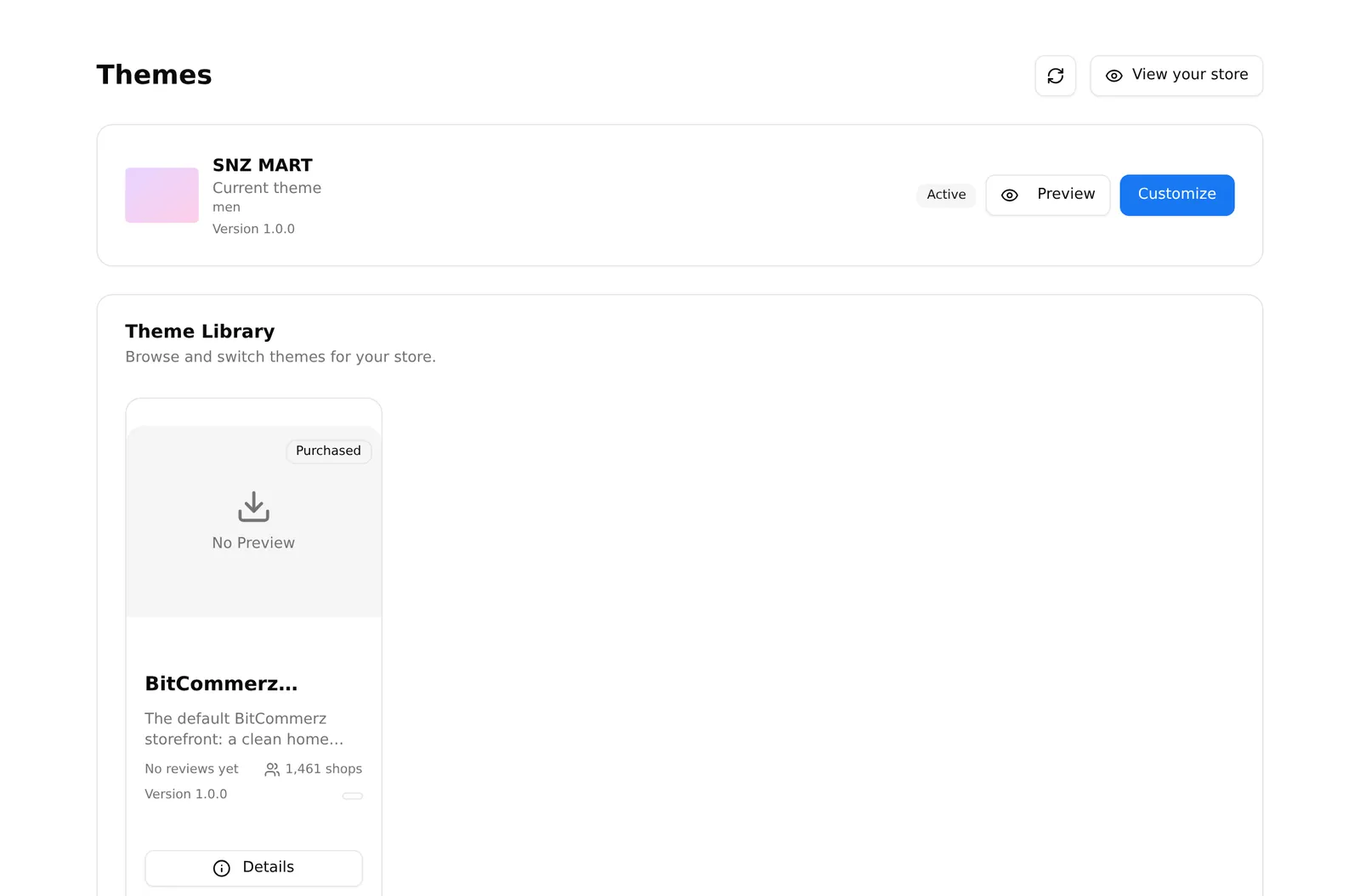
Choosing one
Sidebar → Online Store → Overview lists every available theme. On each card:
- Live demo opens the theme’s real demo store in a new tab. Not every theme has one, so the button is not always there.
- Quick look shows screenshots.
- Details opens the full page with reviews and version history.
There is no way to preview a theme on your own products before applying it. The demo store is a different shop with different products. This is why the backup below matters.
Getting and applying one
Purchase — free themes are added immediately; paid ones take you to a payment page and back.
Then Set Active on a theme you own. A confirmation appears:
This replaces your shop’s default pages and home page with this theme’s versions.
It offers a Keep my current home page checkbox. Tick it if you have built a home page you care about, otherwise the theme’s home page replaces yours.
A theme marked Coming soon cannot be purchased yet.
Undoing a theme change
Sidebar → Online Store → Themes → Active Theme → Previous Designs.
A backup of your design is saved automatically before every theme apply, so if the new theme is wrong, Restore puts the old one back. This is the safety net that makes trying a theme reasonable.
The same page also has Import sample products, which appears only while your catalogue is empty — useful for seeing how a theme looks before you have real products.
Appearance — colours, fonts and logo
Sidebar → Online Store → Design → Appearance. Changes apply to your live storefront when you press Save.
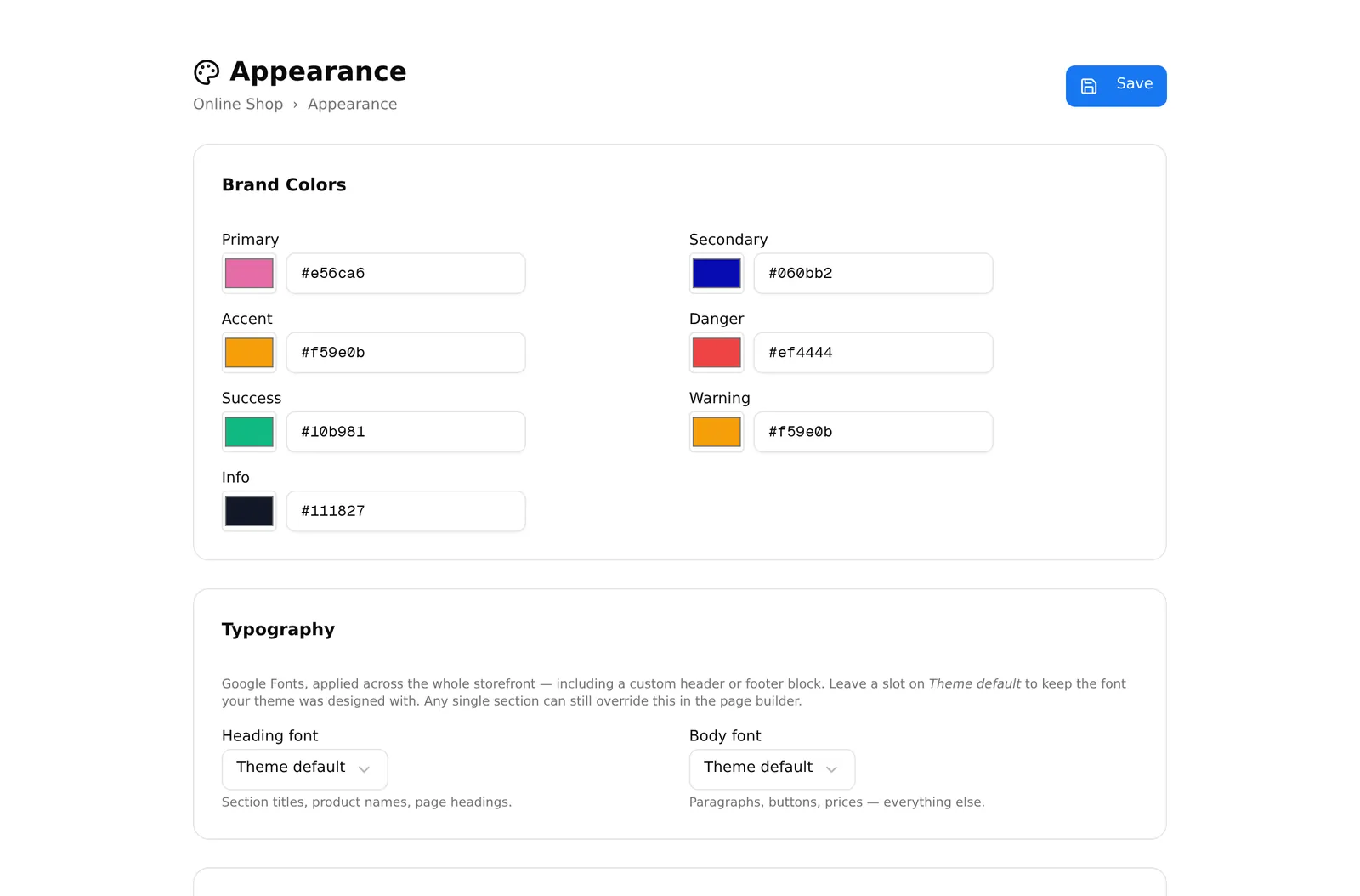
Brand Colors — your theme’s colour slots. What appears here depends on the theme.
Typography — a Heading font (section titles, product names) and a Body font (paragraphs, buttons, prices). A sample line shows each font before you commit, including Bengali characters.
Product cards — eleven separate colours: card background and border, title, price, sale price, add-to-cart background and text, buy-now background and text, discount tag background and text. Each has a Clear button to fall back to the theme default.
Branding — your store logo, shown in the storefront header.
Navigation menus — which menu goes where: header main menu, header nav menu, and two footer menus. Build the menus first in Menu Builder; this only assigns them.
Mobile bottom navigation — the bar along the bottom on phones. Pick up to five from Home, Categories, Search, Cart, Wishlist, Profile, Offers, Call and Menu. Most Bangladeshi shops keep Home, Categories, Cart and Call.
Cart — whether tapping the cart goes to the cart page or slides out a side panel.
Storefront elements — three switches: show “Powered by” in the footer, show the WhatsApp button (needs a WhatsApp number in shop settings), and show the call button.
Advanced (raw settings) — the underlying JSON. Leave it closed unless you know what you are doing. Renaming a key breaks your storefront, and while the advanced editor is open, what is in it overrides everything above when you save.
Previewing your shop
Two different things, and the difference matters:
- View your store (on the Overview page) opens your real, live storefront.
- Shop Preview (Sidebar → Online Store → Shop Preview) shows your storefront at Desktop, Tablet and Mobile widths side by side.
Use Shop Preview to check your design on a phone. Most Bangladeshi shoppers arrive on one, and a design that works on a laptop often does not.
Common problems
“I changed the theme and lost my home page.” Restore from Online Store → Themes → Active Theme → Previous Designs, then re-apply the theme with Keep my current home page ticked.
“My colour change did nothing.” The advanced JSON editor was open. Whatever it contains wins on save — close it and save again.
“My menu is not showing on the storefront.” Two steps are needed: the menu must be Published in Menu Builder, and it must be assigned to a slot in Design → Appearance → Navigation menus.
“The WhatsApp button does not appear.” The switch is on but there is no WhatsApp number in shop settings.
“Shop Preview is blank.” Preview needs a store address configured. Finish your shop setup or connect a domain.