Shipping & delivery
Everything about getting the parcel to the customer: what you charge for delivery, which courier carries it, where your stock sits, and whether the customer is likely to refuse it.
Where to find it
These four screens sit in three places in the sidebar:
| Menu path | What it’s for |
|---|---|
| Shipping → Delivery Charges | What the customer pays for shipping |
| Shipping → Couriers | The delivery companies you have connected |
| Inventory → Warehouses | Your shops and storage locations |
| Orders → Fraud Checker | Risk scores on customer phone numbers |
Setting up delivery, in order
- Delivery charges first. Without one, checkout has nothing to add for shipping. Start with Inside Dhaka and Outside Dhaka.
- A courier second, if you use one. Some shops deliver themselves and never need this.
- Warehouses only if you have more than one location.
- Fraud Checker needs no setup at all — it runs on its own.
Read on for the details of each.
Delivery charges
Sidebar → Shipping → Delivery Charges.
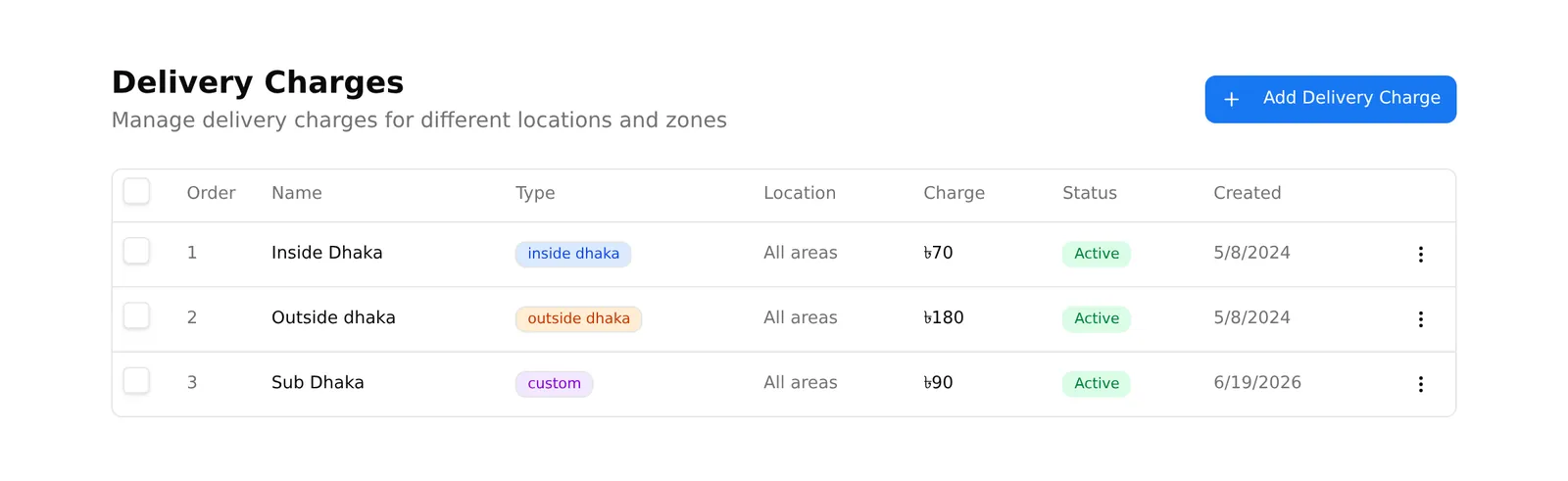
There are exactly three kinds of charge, and the difference matters:
| Type | How many you can have |
|---|---|
| Inside Dhaka | One per shop |
| Outside Dhaka | One per shop |
| Custom | One per city |
Charges are flat amounts, not calculated by weight or distance. Most shops need only the first two.
Adding one
Add Delivery Charge, then:
- Delivery Type — Inside Dhaka, Outside Dhaka, or Custom
- Charge Name — optional. Leave it blank and it names itself
- City — shown only for Custom, and it is required despite the label saying “Optional”. A Custom charge without a city is rejected with “City not found”
- Delivery Charge (৳) — the flat amount
- Delivery Text — optional, shown to the customer. Use it for the promise you actually keep: “Delivery within 24 hours inside Dhaka”
- Display Order — lower numbers appear first at checkout. Blank means the order you created them in
Editing and removing
Edit changes the name, amount, delivery text, display order and active state. Type and city cannot be changed after creation — delete and recreate instead.
Inside Dhaka and Outside Dhaka cannot be deleted at all. The Delete option appears on the menu but the server refuses it. Deactivate them instead.
How the charge is picked at checkout
- If a free delivery offer applies, delivery is ৳0 and nothing else is considered.
- Otherwise the customer picks from your active charges.
- Individual products can override the shop charge, either as a flat amount or per unit — set on the product itself.
- With several products in one order, the customer pays the highest flat charge among them, plus any per-unit charges added up. Flat charges do not stack.
Only Active charges reach the storefront.
Couriers
Sidebar → Shipping → Couriers. Two tabs:
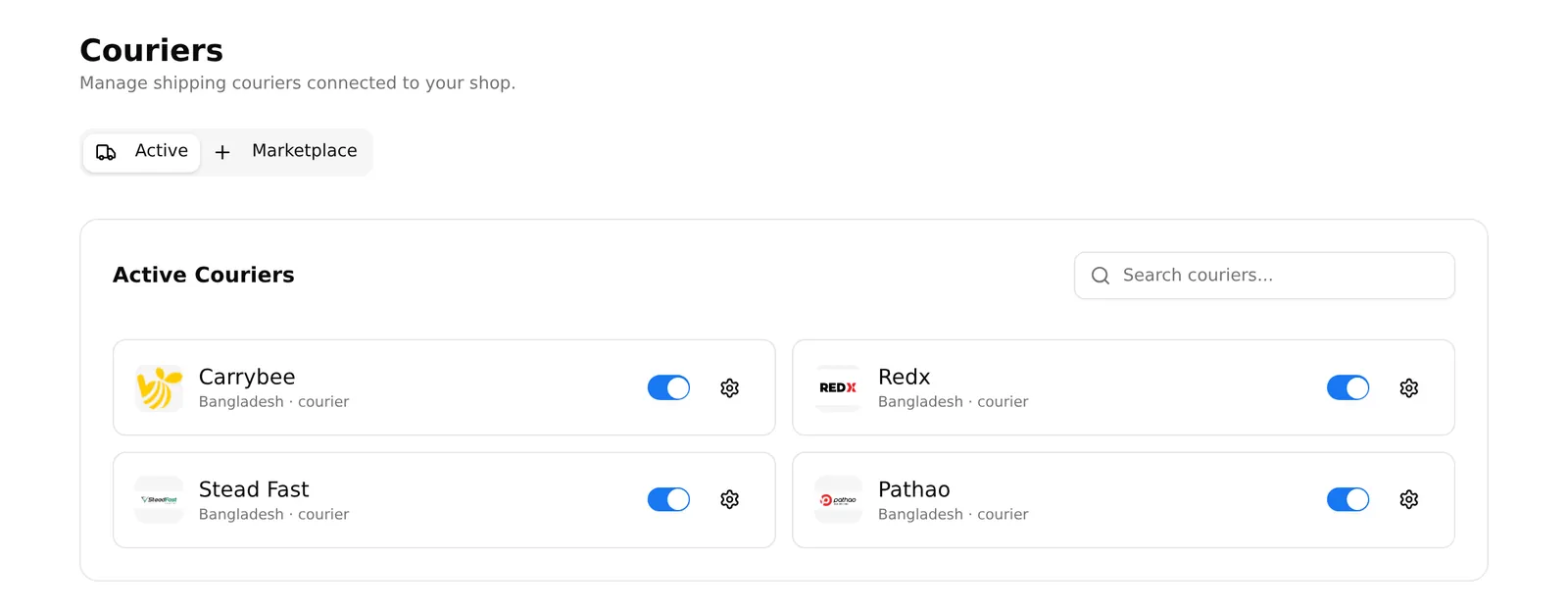
- Marketplace — every courier available. Tick the ones you use, press Enable.
- Active — the ones you enabled, each as a card with an on/off switch and a gear icon for settings.
Plan note: couriers are a paid feature. On a plan without it the page loads but the list fails to fill.
Connecting one
The gear icon opens settings:
- Mode — live or sandbox. Sandbox creates no real pickups.
- Credentials — the fields differ per courier, named as that courier names them.
The couriers the platform can actually dispatch orders to are Pathao, Steadfast, RedX, CarryBee and RX. What each needs:
| Courier | Credentials |
|---|---|
| Pathao | Store ID, client ID, client secret, client email, password |
| Steadfast | App key, app secret |
| RedX | App token |
| CarryBee | Client ID, client secret, client context, store ID |
| RX | Email, password |
There is no test button. Nothing checks your credentials when you save them. The first time they are tested is when you send a real order — so send one small order and confirm the courier received it before relying on the connection.
Once connected, send orders from the order page, or in bulk from the order list.
Warehouses
Sidebar → Inventory → Warehouses. Your shops and storage locations, shown on your storefront’s “find us” pages.
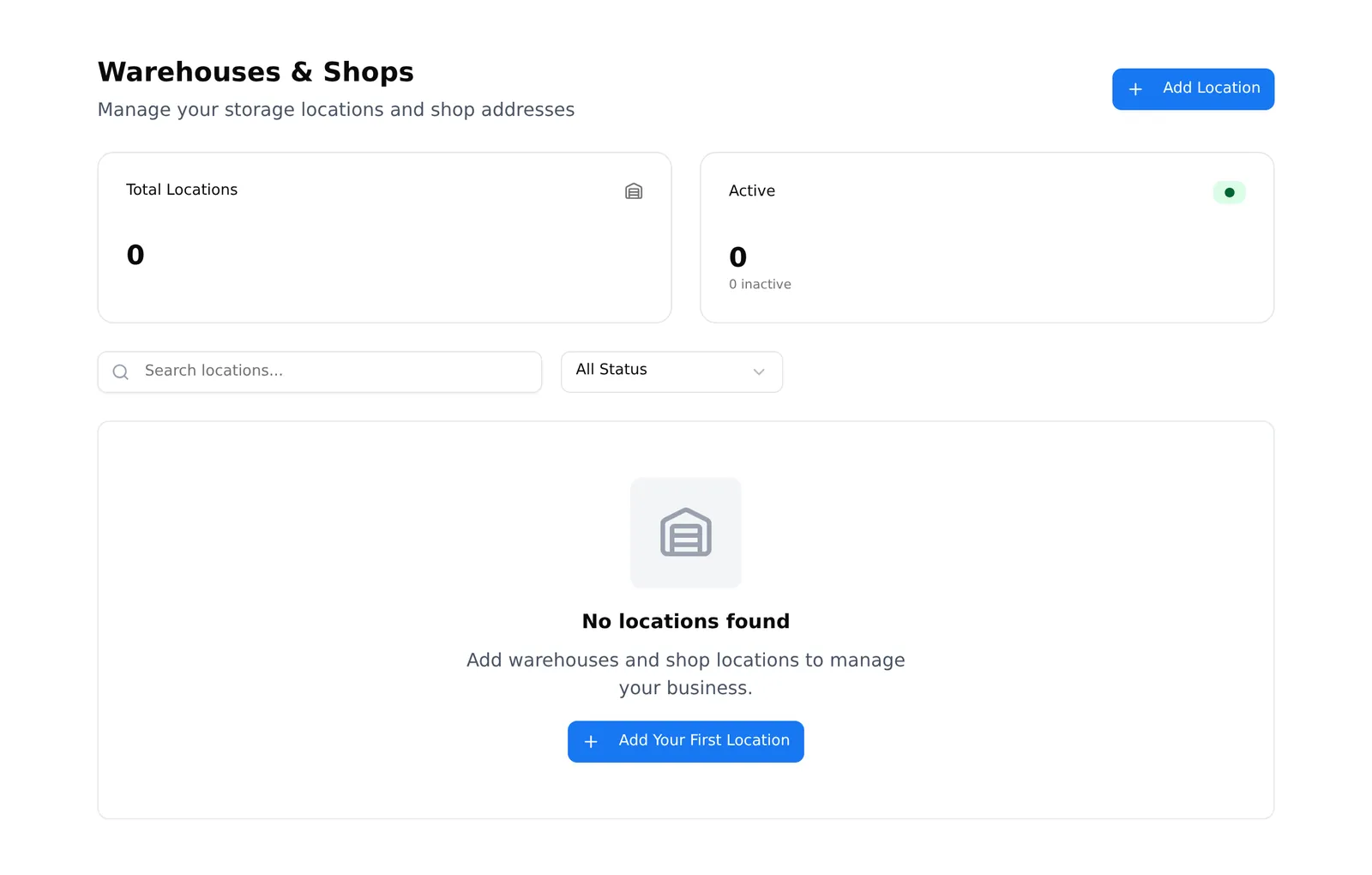
Add Location asks for name, slug, type (Shop or Warehouse), serial number, address, phone, email, latitude and longitude, website URL, map link, closing day, opening hours, country code, and optional video, 360° image and code.
Only name and address are actually required, despite the asterisks on other fields. Fill in what you have.
Three things to know:
- The Edit dialog cannot change active or inactive. Use Activate / Deactivate on the row’s ⋯ menu.
- There is no delete. Deactivate is as far as it goes.
- The Total Locations and Active counts only cover the locations currently on screen — the page shows ten at a time with no way to page further. With more than ten locations, treat those numbers as a partial count.
Plan note: every plan includes a maximum number of warehouses. Over the limit, creating one fails — you will see both a plan-limit message and a generic “Failed to create warehouse” alert. The first one is the real reason.
Fraud Checker
Sidebar → Orders → Fraud Checker. A list of your orders with a risk score against the customer’s phone number.
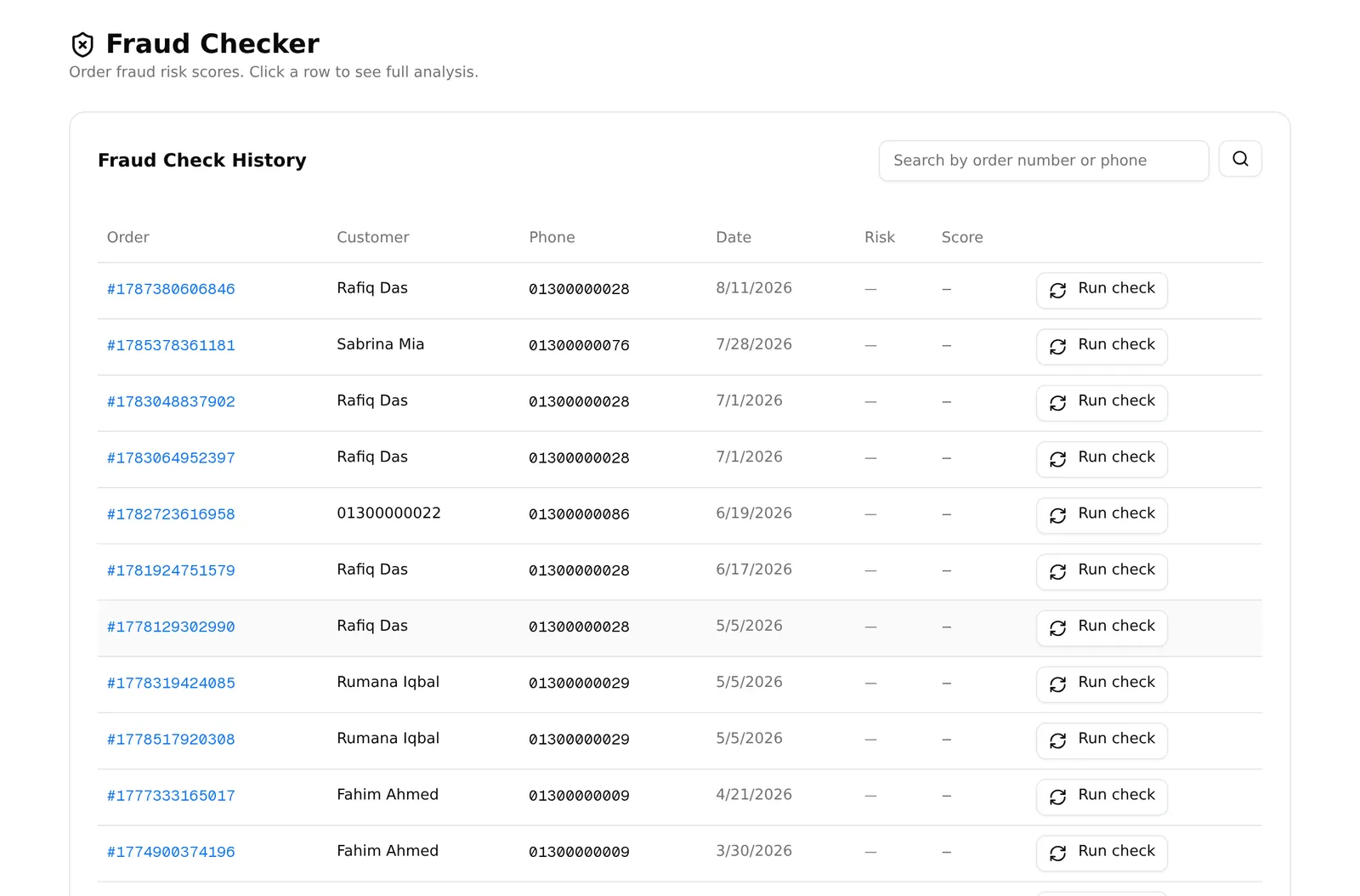
There is nothing to switch on. Every new order is checked automatically in the background, and you can re-check any order by hand.
Reading a score
Risk is GREEN, YELLOW, AMBER or RED. Clicking a row opens the full analysis:
- Delivery rate and a confidence figure out of 100
- Lookup history — total orders seen, delivered and returned, as percentages
- Courier performance — how this customer behaved with each courier
- Verified signals — delivered, returned and cancelled counts, plus a return rate
- Velocity & COD — orders in the last 7 and 30 days, activity across other merchants, and their Cash on Delivery cancellation rate
Scores are cached for 24 hours. After that the button reads Run Check rather than Re-check.
Using it well
A red score is a reason to phone the customer and confirm before dispatch, particularly on an expensive Cash on Delivery order. It is not a reason to cancel. Customers with a bad history sometimes have a bad courier, not bad intent.
Plan note: the fraud checker is a paid feature with a monthly allowance of checks, not a simple on/off. Opening the detail modal spends one. When the allowance runs out you get an error message on the check button.
An empty Risk column is ambiguous — it means either “not checked yet” or “your plan does not include this”. If every row is blank, it is the plan.
Common problems
“Checkout shows no delivery option.” No active delivery charge exists. Create Inside Dhaka and Outside Dhaka.
“My Custom charge will not save.” Pick a city. The label says optional; the server disagrees.
“Delivery is wrong on multi-product orders.” Highest flat charge wins, plus per-unit charges. Check whether one product has its own override.
“The courier rejected the order.” Credentials, or sandbox mode. Nothing validates them at save time, so check both in the courier’s settings.
“Rows in Fraud Checker will not open.” Those orders have no check yet. Use Run check on the row first.