Apps & integrations
Much of what your dashboard can do arrives as an app. Understanding this explains most “where did my menu item go?” questions.
Where to find it
Sidebar → Apps holds the three app screens. The other tools on this page live where you use them:
| Menu path | What it’s for |
|---|---|
| Apps → App Store | Browse and install apps |
| Apps → Installed Apps | What you have, and what needs paying for |
| Apps → Add-ons (Legacy) | The old add-on system, being retired |
| Online Store → URL Redirects | Send old web addresses to new ones |
| Settings → Checkout & Security → Blocked IPs | Block abusive traffic |
| Settings → SMS & Email → SMS Gateways | Send text messages |
| Settings → SMS & Email → Email Gateways | Send email |
Why menu items disappear
An uninstalled app hides its own menu entry. This is the single most useful thing to know here.
These dashboard features are apps, and each vanishes from the sidebar when its app is not installed:
Payment Gateways · Couriers · SMS Gateways · Product Reviews · Abandoned Checkouts · Blog · Fraud Checker · Forms · URL Redirects · Blocked IPs · Facebook · TikTok · Microsoft Clarity · Google Analytics · Pinterest · reCAPTCHA · WhatsApp · OmniConva · Guest Checkout & OTP · Order Flow
AI Studio belongs to the AI Assistant app. It comes with your plan, so it only disappears if you uninstall AI Assistant — and then the AI buttons in your editors go too. See AI Studio & AI credits.
When every item in a menu group belongs to apps you have not installed, the whole group disappears — for example Marketing → Ads & Tracking when no pixel app is installed.
So a missing menu item has two possible causes: your plan does not include it, or the app is not installed. Check Installed Apps first — it is the quicker of the two to fix.
An app can also become inactive because a payment lapsed. That hides the menu item just as an uninstall does.
Installing an app
Sidebar → Apps → App Store. Search or filter by category. Cards show the price, any free trial, and whether the app is a Core app.
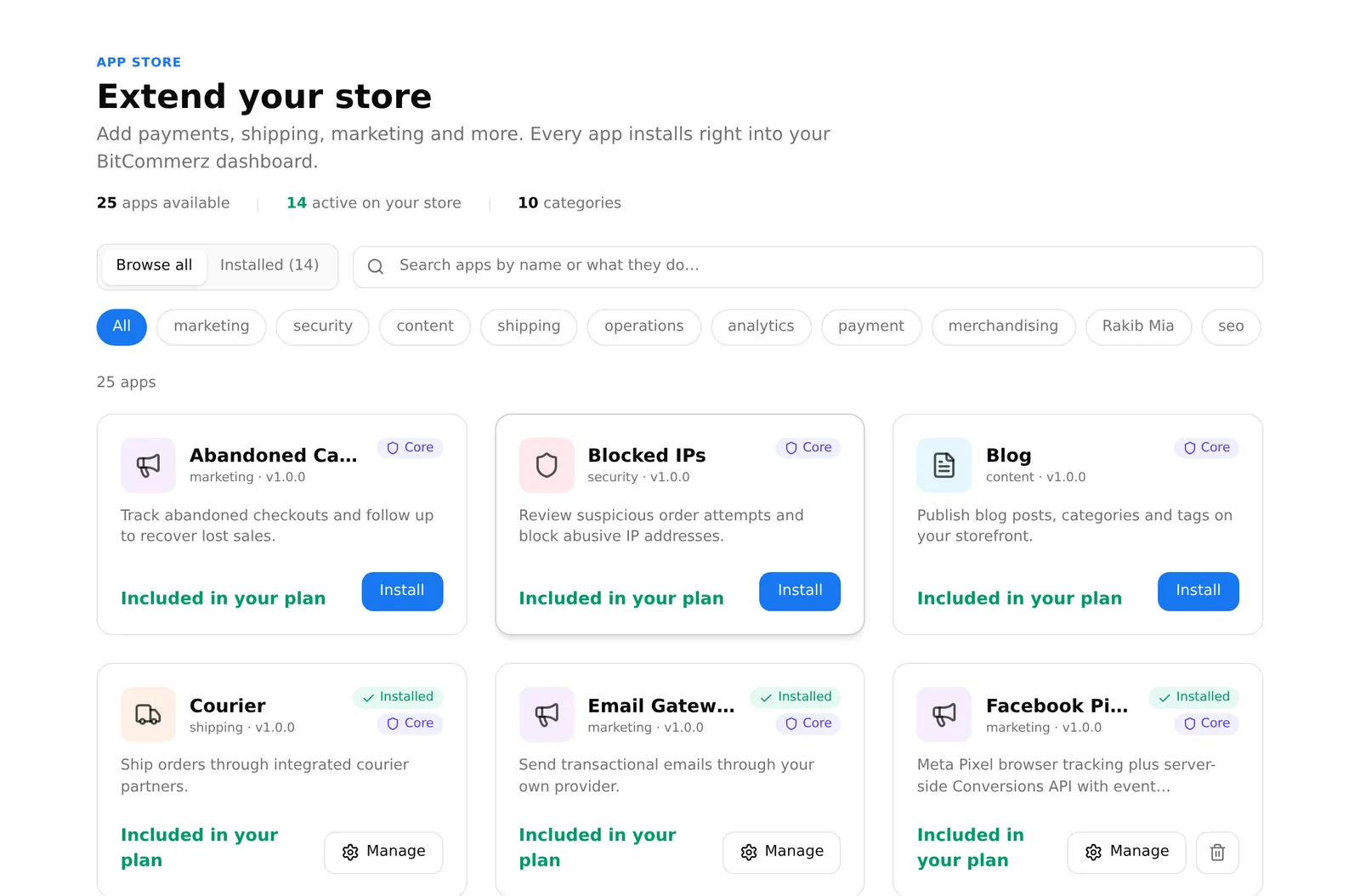
Install adds it. Paid apps go through a payment page first.
Apps your plan includes are installed for you automatically — you do not need to find them.
Managing installed apps
Sidebar → Apps → Installed Apps.
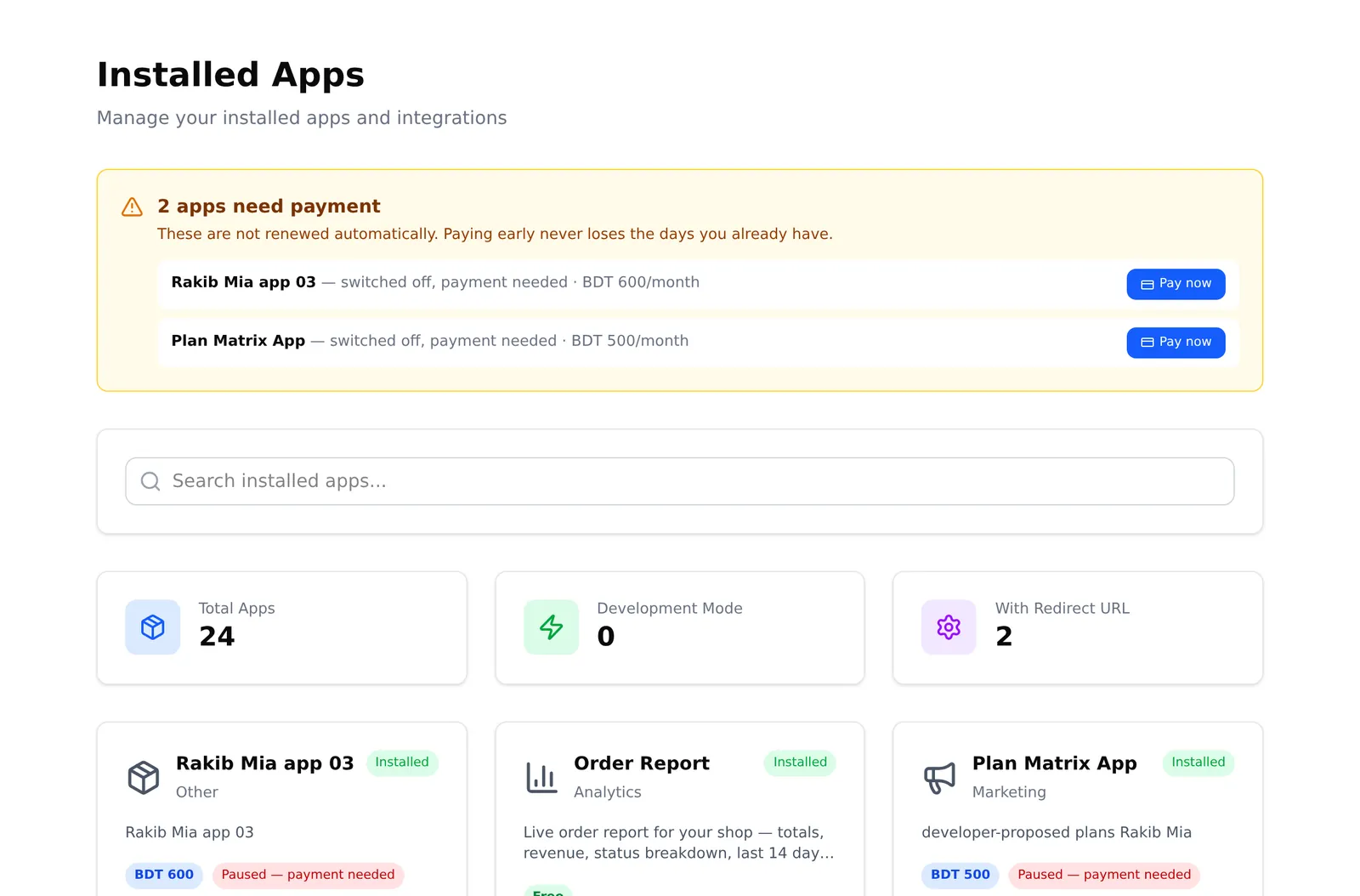
If any app needs paying for, an amber block at the top says so with a Pay now button per app. These do not renew automatically, and an unpaid app is paused — its features and menu items disappear until you pay.
Paying early does not lose the days you already have, so there is no reason to leave it until the last day.
Configure opens an app’s own settings. Apps with nothing to configure show a disabled button instead. Some apps are required and cannot be removed.
SMS gateways
Sidebar → Settings → SMS & Email → SMS Gateways. Two tabs: Marketplace to enable a provider, Active to configure one.
The settings dialog takes the provider’s credentials, a live or sandbox
mode, and your message templates. Templates use <OTP> where the code should
go — for example “Your OTP is <OTP>”.
Two warnings worth taking seriously:
- Nothing verifies your credentials when you save them. A gateway with a blank or wrong key saves without complaint.
- Most SMS providers reply “accepted” even when they refuse to send. So a message can silently never arrive while everything looks fine.
Send yourself a test message after any change, and check your gateway balance separately. An SMS gateway that has run out of credit fails exactly like one that is working.
An active SMS gateway is required for OTP verification and for SMS actions in Order Flow.
Email gateways
Sidebar → Settings → SMS & Email → Email Gateways. Add Gateway, then pick a provider — SMTP, SendGrid, Mailgun or Amazon SES — and give it a name and credentials.
Credentials are stored encrypted. When editing, leaving the password blank keeps the existing one.
URL redirects
Sidebar → Online Store → URL Redirects. Send an old address to a new one, so links and search results that point at a page you moved still work.
Add Redirect asks for the old path (/old-page), the new one (/new-page),
and a type:
- 301 (Permanent) — the usual choice. Tells Google the page moved for good
- 302 (Temporary) — for something genuinely temporary
Import CSV does many at once, and Sample CSV downloads the format.
Set up a redirect whenever you change a page’s web address, or that page’s existing links and search rankings are lost.
Blocked IPs
Sidebar → Settings → Checkout & Security → Blocked IPs. The page itself is titled Risk Guard.
Five tabs: Blocked, Allowlist, Rules, Activity and Settings. It blocks abusive traffic, lets through customers you trust, and — importantly — shows you what your rules would do before you switch them on.
Use that preview. A rule that is too broad blocks real customers, and they see nothing but an error page with no way to tell you.
Add-ons (Legacy)
Sidebar → Apps → Add-ons (Legacy). The previous system, being replaced by core apps. Most shops have nothing here. Do not build anything new on it.
Common problems
“A feature vanished from my sidebar.” The app was uninstalled, or its payment lapsed. Check Installed Apps.
“OTP will not turn on.” No active SMS gateway.
“My customers are not getting SMS.” Credentials, or credit. Neither is checked when you save. Send yourself a test and check the balance with your provider.
“I installed an app but nothing changed.” Some need configuring before they do anything — use Configure on Installed Apps.