Payments
Every online payment your shop has taken, whether it succeeded or not. Cash on Delivery does not appear here — there is no online transaction to record.
Where to find it
Sidebar → Payments → Online Payments.
Reading the list
| Column | What it tells you |
|---|---|
| Transaction | The gateway’s reference for the payment |
| Order | The order it paid for — click through to it |
| Customer | Who paid |
| Gateway | Which payment provider handled it |
| Amount | How much |
| Status | Pending, Success, Failed or Refunded |
| Date | When |
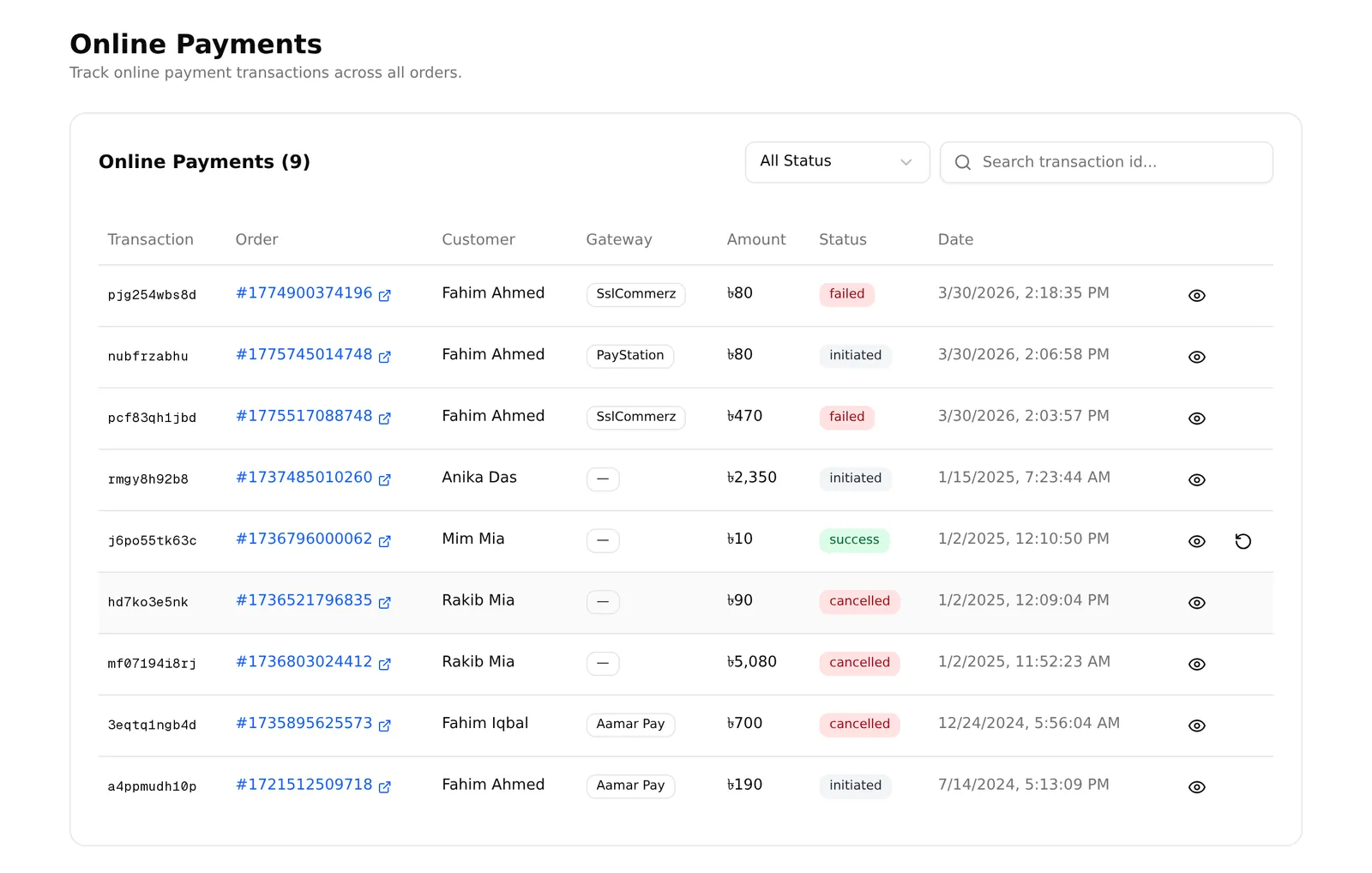
The heading shows the total count for your current filter, not just this page.
Filtering
A status dropdown — All Status, Pending, Success, Failed, Refunded — and a search box that matches the transaction ID only.
Searching a customer name or an order number here finds nothing. Use the order list for that; it searches far more fields.
Looking at one payment
The eye icon on a row opens the full detail: amount, status, gateway, transaction ID, order, date and customer.
Gateway response is the useful part. It expands to show exactly what the payment provider sent back, with a Copy button. When a customer insists they paid and your records disagree, this is the evidence — copy it into your support ticket with the gateway.
Failed payments are worth reading
A Failed row means the customer tried to pay and could not. They may well still want the product.
Cross-check them against abandoned checkouts and phone the customer — a failed payment is a customer who had their wallet open.
Refunds
The circular-arrow icon appears on successful payments, and opens a refund dialog asking for an amount and an optional reason.
Refunds through this screen are currently unreliable, and you should not depend on them. Two limits apply:
- The dashboard only ever reports “Failed to submit refund request” when something goes wrong, without saying why.
- On the server, refunds are only implemented for bKash. An order paid by SSLCommerz, Nagad, PayStation or card cannot be refunded here even though the button is shown, and the order must already be marked paid.
Refund through your gateway’s own dashboard instead, then mark the order Refunded in the order so your records match.
Common problems
“A payment succeeded but the order still says unpaid.” They are stored separately. Open the order and set its payment status — see Working on an order.
“The list is empty.” Either you have no online payments — a Cash on Delivery shop will have none at all — or no gateway is connected yet. See Payment gateways.
“Error instead of a list.” Online payments are a paid feature. On a plan without it the request is refused and you see an error rather than an upgrade message. Check your plan.