Customers
Everyone who has bought from you or created an account.
Where to find it
Sidebar → Customers.
| Menu item | What it’s for |
|---|---|
| All Customers | The list of everyone |
| Segments | Named groups of customers |
The customer list
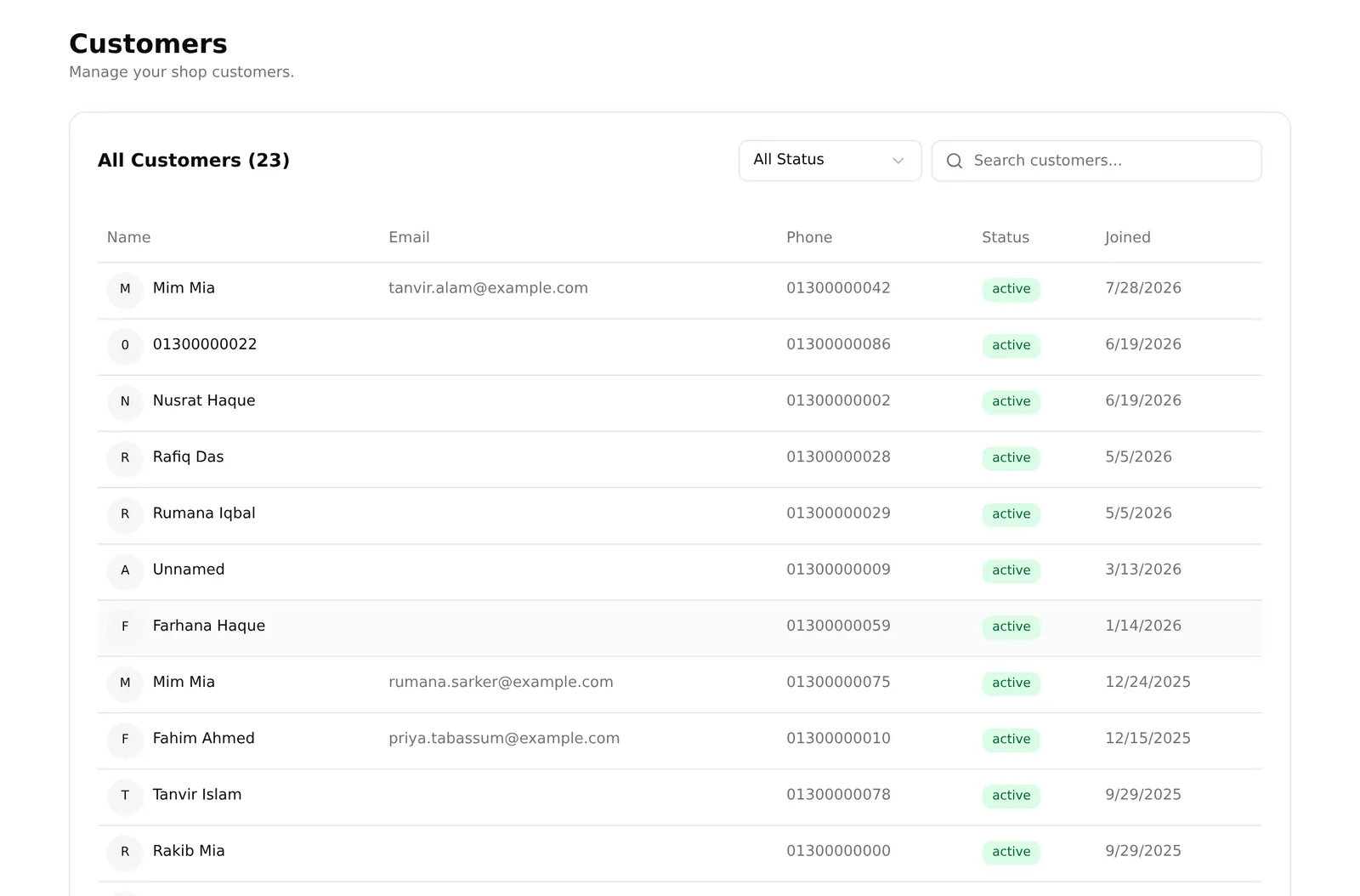
Sidebar → Customers → All Customers shows Name, Email, Phone, Status and when they joined, with the total count in the heading. Filter by All Status, Active or Inactive, and search by name, email or phone.
This page is currently a read-only list. There is no way to open a customer from it, and no button to add one — the rows are not clickable and there is no actions column.
Customer detail pages do exist and work. To reach one you need its web address:
/customers/ followed by the customer’s ID. That page shows their contact
information, recent orders and account details, and has an Edit button.
We are aware this is awkward and it is being fixed. Until then, the order list is the better tool for looking someone up — search Orders by phone number and you get every order that person has placed, which is usually what you actually wanted.
Segments
Sidebar → Customers → Segments. Named groups — regular buyers, wholesale accounts, people who bought a particular product — showing segment name, description and how many customers are in each.
Segments are worth building before a campaign, so you have something to target rather than messaging everyone.
Where customer records come from
Three ways:
- They created an account on your storefront
- They checked out as a guest and your shop has auto-create user account from phone number switched on, in Guest Checkout & OTP
- You created the order by hand — see Creating an order by hand
If your customer list looks emptier than your order count suggests, the second one is usually why: guest orders without auto-create leave no customer record.
There is no customer export
The dashboard cannot export your customer list to a spreadsheet. If you need one, export your orders instead — the CSV includes the customer name and phone on every order, which covers most of what an export would give you.
A note on customer data
The phone numbers and addresses here belong to real people. Two habits worth keeping:
- Give staff the narrowest role that lets them work. Access to customer data is a permission, not something everyone needs — see Team & access.
- Do not paste customer lists into other tools to try things out. Once the data is somewhere else, you no longer control it.
Common problems
“I cannot open a customer.” The list does not link to them yet. Search Orders by their phone number instead.
“A customer who ordered is not in the list.” They checked out as a guest and auto-create is off. The order still has their name, phone and address.
“I cannot export my customers.” There is no export. Use the orders export.
“The Customers menu is missing.” Access to customer data can be a plan feature — see your plan.