Pages and the page builder
Two different kinds of page, edited in two different places:
- Pages — ones you create: About us, a campaign landing page, your home page
- Default pages — built-in ones that already exist: Cart, Checkout, Product, Search results
You can restyle both. You cannot delete the built-in ones.
Your own pages
Sidebar → Online Store → Pages → Pages.
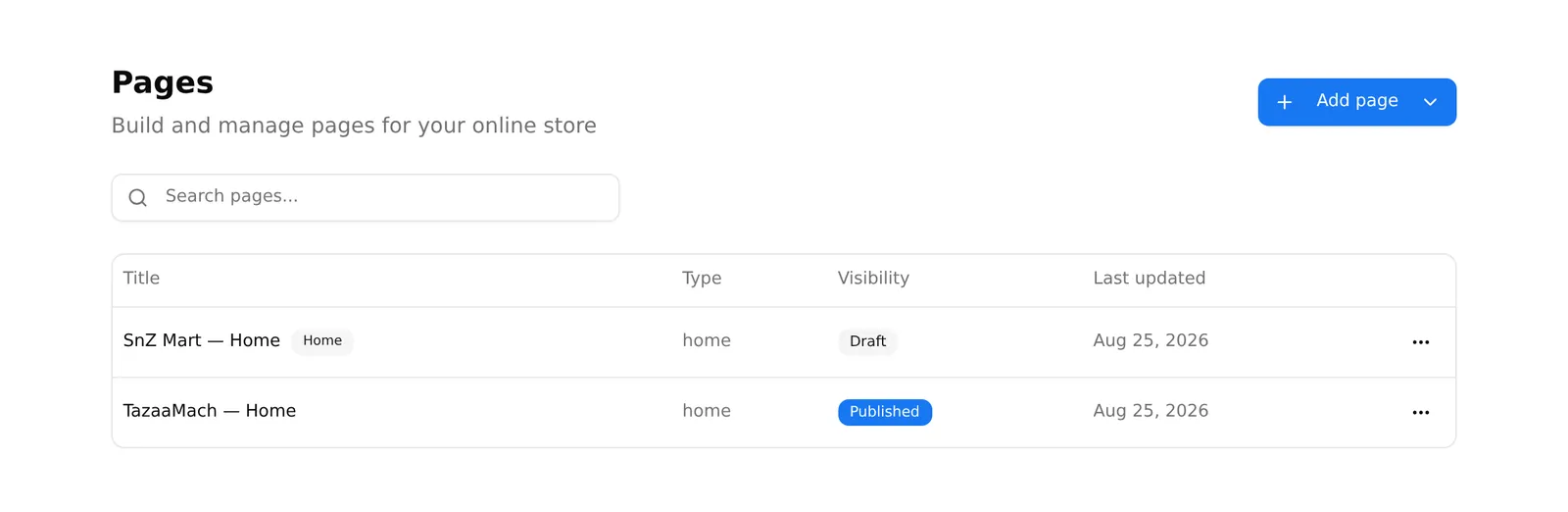
The list shows title, type, visibility (Published or Draft) and when it was last changed. Your home page carries a Home badge.
Creating one
Add page offers two choices:
- Blank page — an empty page, opened straight in the builder
- Landing page — takes you to a chooser first
The landing chooser offers a blank landing, two starters (Hero + offer and Long-form sales page), any templates your theme ships, and any templates saved on the platform. Picking one creates the page and opens it.
Landing pages hide the shop header and footer by default, so a campaign page is not cluttered with navigation. You can switch them back on in page settings.
The builder
A control-by-control guide to the builder — every section, every setting — starts at The builder in detail.
The centre is a live preview of your storefront. The left rail lists your Sections — drag to reorder, and use the per-section controls to hide, duplicate or delete.
At the top: the page name, its web address, whether it is Live or Draft, undo and redo, History, and Settings.
Draft and live are separate. Two buttons, and only one of them affects customers:
- Save draft stores your work. Customers see nothing.
- Publish pushes it live, after a confirmation.
The builder autosaves your draft a couple of seconds after you stop typing, so your work is not lost — but autosaving is not publishing. Nothing reaches your customers until you press Publish.
Page settings
The Settings button opens five tabs:
- SEO — the page’s web address, meta title, description, keywords
- Layout — full width or boxed, maximum width, background colour or image
- Visibility — show the store header, show the store footer
- Header & footer — use a specific header or footer just on this page
- Custom code — your own CSS
Managing pages
The ⋯ menu on each row: Edit, Publish / Unpublish, Copy link, and Delete. Deleting asks for confirmation and cannot be undone. Some pages cannot be deleted at all.
Copy link needs a store address. Without a domain configured you get “Store URL unavailable”.
Pages from the old builder
Pages marked Landing (old) or Legacy were built with the previous builder. They still work on your storefront, but their content cannot be edited here.
Convert to editable sections makes an editable copy split into sections you can reorder and hide. The original is left alone, so converting is safe to try.
Page edit limits
If your plan has a page-edit limit, the builder shows a counter at the top —
12 / 50 edits, and so on. Unlimited plans show nothing.
One “edit” is a 30-minute editing session on a page, not one save. Autosave does not burn through your allowance — you can work on a page for half an hour and spend one edit. See your plan.
Default pages
Sidebar → Online Store → Pages → Default Pages.
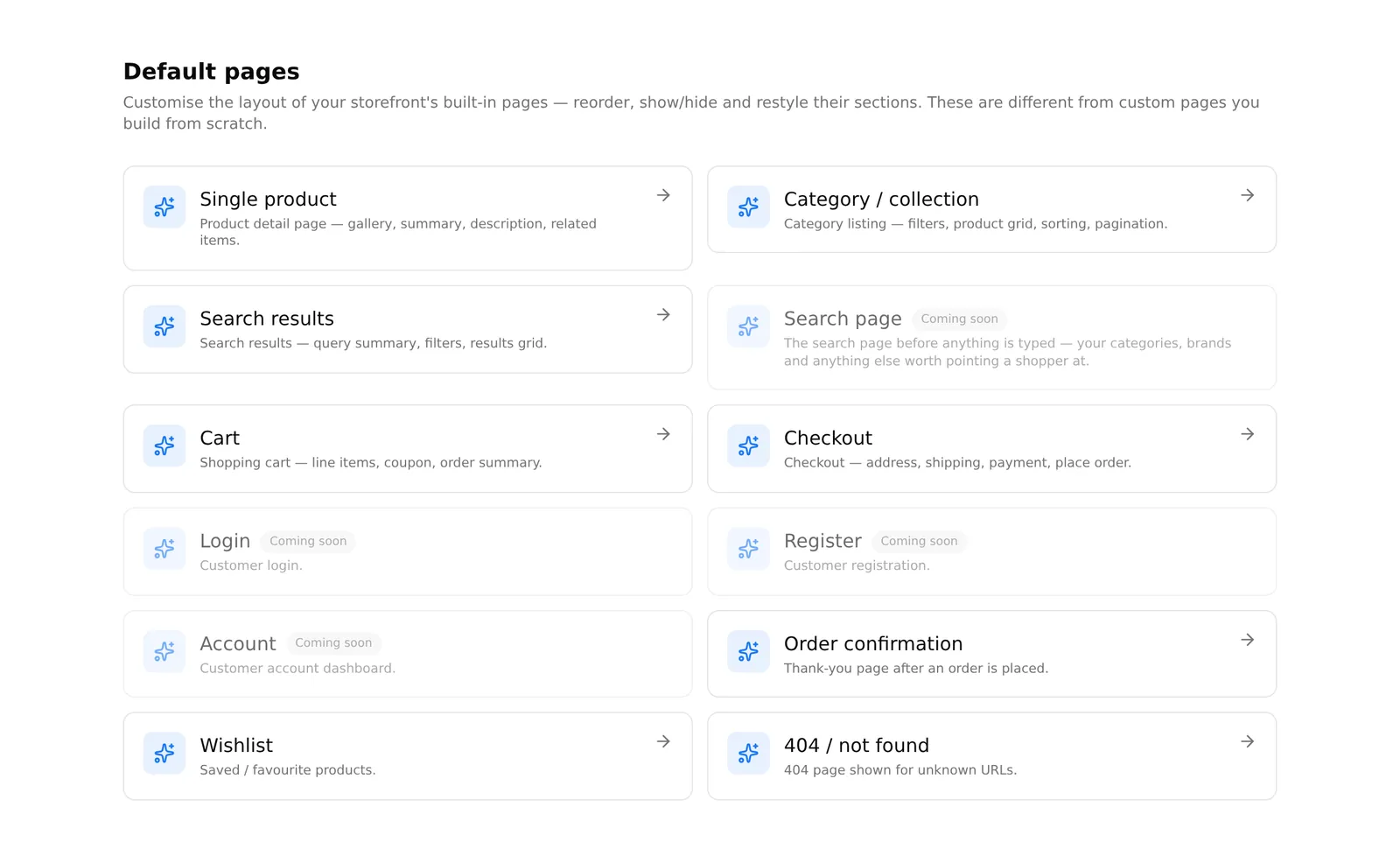
These are your storefront’s built-in pages. You can reorder, hide and restyle their sections — your products, cart and checkout behaviour are not affected.
Eight can be edited:
| Page | What it is |
|---|---|
| Single product | Product detail — gallery, summary, description, related items |
| Category / collection | Listing with filters, grid, sorting |
| Search results | What a search returns |
| Cart | Line items, coupon, order summary |
| Checkout | Address, shipping, payment |
| Order confirmation | The thank-you page after an order |
| Wishlist | Saved products |
| 404 / not found | Shown for unknown web addresses |
Four are marked “Coming soon” and cannot be opened: Search page (before anything is typed), Login, Register and Account. They work perfectly on your storefront — they just have no editable layout yet.
Editing one works like the page builder: Save draft then Publish. Publishing is blocked if you removed a section the page requires; the message names it.
The product page has an extra Break into elements button, which splits the product block into separately movable pieces — gallery, title, price, add to cart — so you can rearrange them.
Common problems
“I saved but the storefront has not changed.” You saved a draft. Press Publish.
“My page shows an old design after a theme change.” Applying a theme replaces default pages and the home page. Restore from Online Store → Themes → Active Theme → Previous Designs if you needed the old one.
“I cannot edit my old landing page.” It was made with the previous builder. Use Convert to editable sections.
“I hit my page edit limit.” Your plan caps editing sessions per month. See Billing.
“A widget warning appeared when publishing.” Some sections belong to a theme you are no longer using. They will not show on the storefront — delete them or switch back to that theme.