Finding an order
Sidebar → Orders → All Orders.
Search
The search box matches five things at once:

- the order ID (the
#123in the first column) - the order number
- the customer’s name
- the customer’s phone number
- the payment transaction ID
Search by phone number. It is the one field customers give you correctly over the phone, and it finds every order that person has ever placed.
Filters
Above the table:
| Filter | Options |
|---|---|
| Payment Status | Paid, unpaid, and so on |
| Payment Method | Cash on Delivery, bKash, Nagad, Rocket, Upay, SSLCommerz, AamarPay, PayStation, PortPos, Stripe, UCB, Bank Transfer |
| Courier | Whichever couriers you have connected |
| Date Range | Start and end date |
Filters combine — payment method bKash plus status unpaid plus this month’s dates gives you exactly the bKash orders you are still chasing.
Every filter resets when you leave the page. Nothing you filter is remembered for next time, so a missing order is always something you filtered out during this visit.
Status tabs
The row of tabs above the table — All, then one per status — is the fastest filter of the lot. Most days you live in Confirmed and Processing.
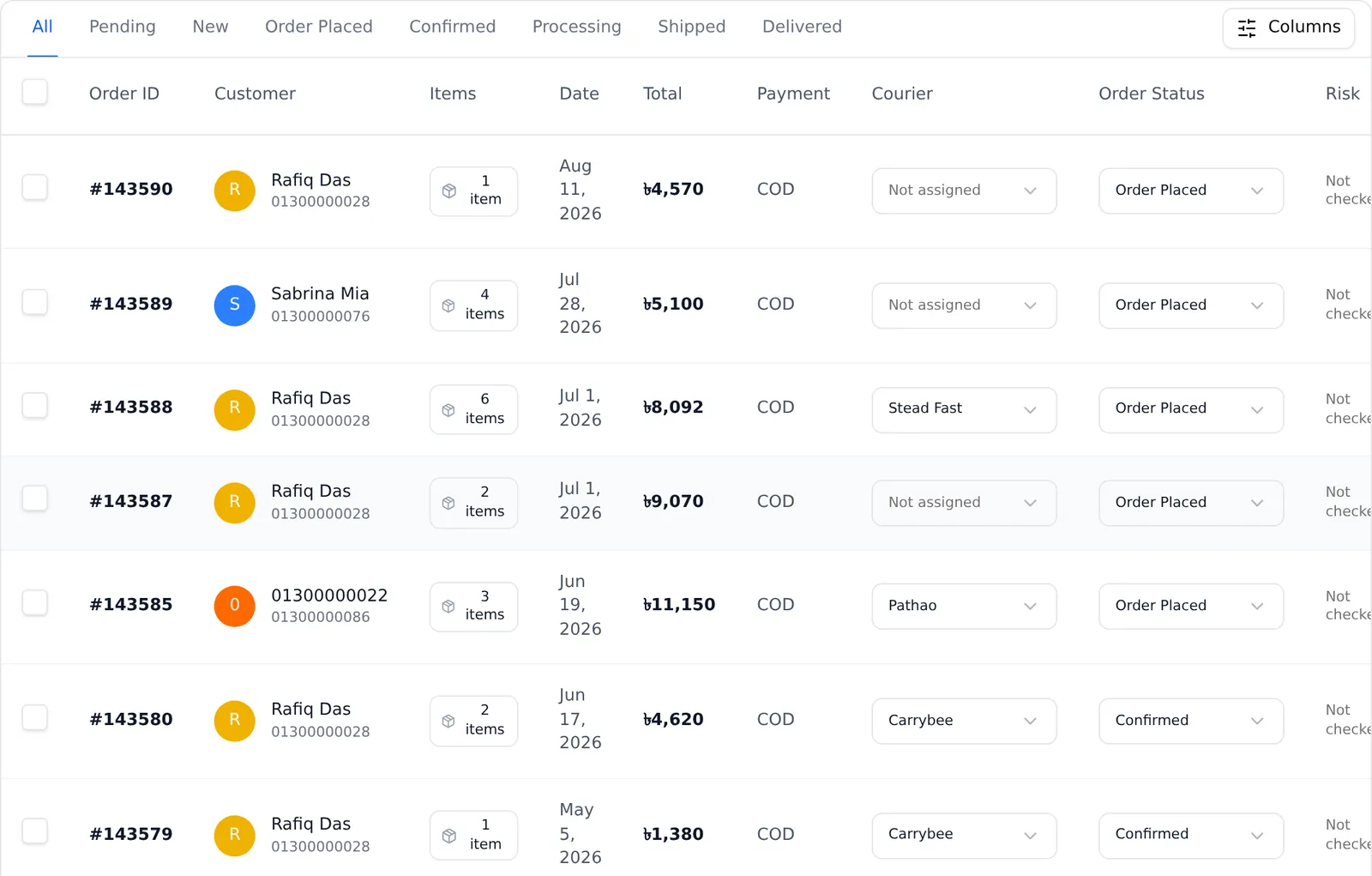
The tabs are built from your statuses. If you added statuses in Order Flow, they appear here automatically.
Choosing your columns
The Columns button on the right of the tab row turns columns on and off: Order ID, Customer, Items, Date, Total, Payment, Courier, Order Status, Risk. Order ID cannot be hidden.
Your choice is saved in this browser. It sticks between visits, but it does not follow you to your phone or to another computer, and it is not shared with your staff — each person sets their own.
What you can do without opening the order
Two shortcuts save a lot of clicking:
- The eye icon at the end of each row opens a quick view drawer — the whole
order in a panel, without leaving the list. (Clicking the
#123order number itself opens the full order page instead.) - The Order Status cell is a dropdown. Change a status straight from the list. It asks you to confirm and lets you add a note.
The ⋯ menu at the end of each row has View Details, Mark as Processing, Mark as Delivered, Print Invoice, Print Packing Slip, Print Delivery Slip and Cancel Order.
Doing many orders at once
Tick the checkboxes and a blue bar appears above the table with:
- Change status to… — moves every selected order
- Change courier to… — assigns them all to one courier
- Invoice, Packing Slip, Delivery Slip — prints all of them in one document
This is how you handle a morning’s orders: tick everything Confirmed, print the packing slips as one job, then bulk-change them to Processing.
Plan note: bulk printing is a paid feature on some plans. If the buttons do nothing, check your plan.
Exporting to a spreadsheet
Export Orders, top right, downloads a CSV.
It exports what you are currently looking at, not everything. Your search, status tab, dates and filters all apply. And if you have rows ticked, it exports only those rows. Untick everything first if you want the full filtered set.
Common problems
“Export gave me three orders.” You had three rows selected. Selection wins over filters.
“Change courier is greyed out.” You have not connected a courier yet — see Couriers.
“My colleague sees different columns.” Column choices are per-browser, not per-shop.