Menus, headers and footers
How customers move around your shop. Three pieces that work together:
- Menus — the lists of links
- Headers — the bar at the top of every page
- Footers — the block at the bottom
A menu does nothing until it is assigned to a slot in Appearance.
Building a menu
Sidebar → Online Store → Design → Menu Builder.
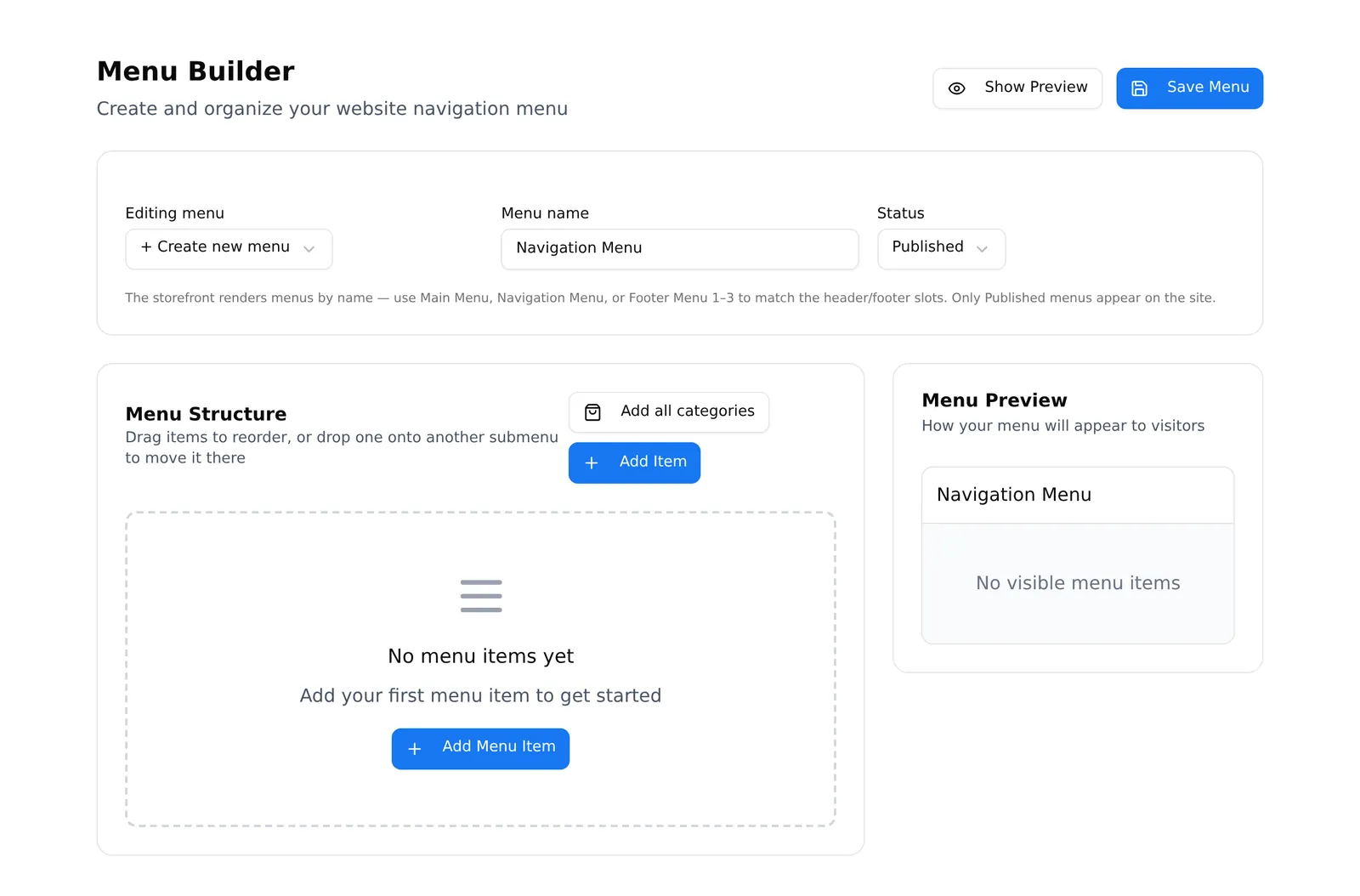
Two rules that decide whether your menu appears
The name matters. Your storefront looks for menus by name. Use exactly one of: Main Menu, Navigation Menu, Footer Menu 1, Footer Menu 2, Footer Menu 3. A menu called “My links” will not be found.
Only Published menus appear. A menu left on Draft is invisible on the storefront, however complete it is.
Adding items
Add Item opens a dialog:
- Label — the words the customer sees
- Type — Custom Link, Page, Category, Brand or External Link
- For Page, Category and Brand you pick from a list, so the link cannot break. For the other two you type a web address
- Visible in menu — hide an item without deleting it
- Open in new tab — sensible for external links, not for your own pages
Add all categories builds your whole category tree in one press, with sub-categories as submenus. For most shops this is the fastest way to a working menu — press it, then delete what you do not want.
Arranging
Drag items to reorder. Drop one item onto another to make it a submenu item. The row icons are add sub-item, toggle visibility, edit and delete.
Menu Preview on the right shows the result. Show Preview / Hide Preview controls whether hidden items appear there too.
Press Save Menu when done, and set the status to Published.
Headers and footers
Sidebar → Online Store → Design → Headers (or Footers).
You can keep several and choose which is the default. The default applies to every page unless a page overrides it in its own page settings.
The list shows name, status and last updated. The default carries a star badge.
The ⋯ menu has Edit, Set as default, Remove default and Delete.
Editing one
Saving a header or footer publishes it immediately. There is no draft here and no autosave — unlike the page builder, the moment you press Save your customers see the change. Check it on your storefront straight after.
If your header came from the old builder, saving replaces it entirely with what the editor shows, and the original is gone. A warning banner and a confirmation both say so. Read them — the old header often contains things the editor cannot show.
One quirk with footers
A default footer cannot be un-set from this screen. Headers have a Remove default option; footers do not. To change which footer is the default, use Set as default on a different one.
Common problems
“My menu does not appear on the storefront.” Three things to check, in order: is it Published? Is it named exactly one of the five recognised names? Is it assigned to a slot in Design → Appearance → Navigation menus?
“A menu item goes to the wrong place.” Custom and external links are typed by hand and are easy to mistype. Where possible use the Page, Category or Brand types instead — they cannot break.
“My header changed on the live site before I was ready.” Header and footer saves publish immediately. There is no draft stage.
“One page has a different header.” That page has an override in its page settings.