Order flow
Order Flow lets you replace the built-in order statuses with your own, decide which status can follow which, and attach automatic actions to each move.
Most shops never need it. Reach for it when the standard statuses genuinely do not describe your business — you have a tailoring step, or a “Ready for Pickup” stage, or you want an SMS to go out the moment something ships.
Plan note: Order Flow is a core app. If the menu item is missing, either your plan does not include it or the app is not installed — check Sidebar → Apps first, then your plan.
Where to find it
Sidebar → Orders → Order Flow. Two tabs:
- Flow — the visual builder
- Statuses & Actions — the same settings as lists
The Flow tab
Every status is a box. Every allowed move is an arrow between two boxes.
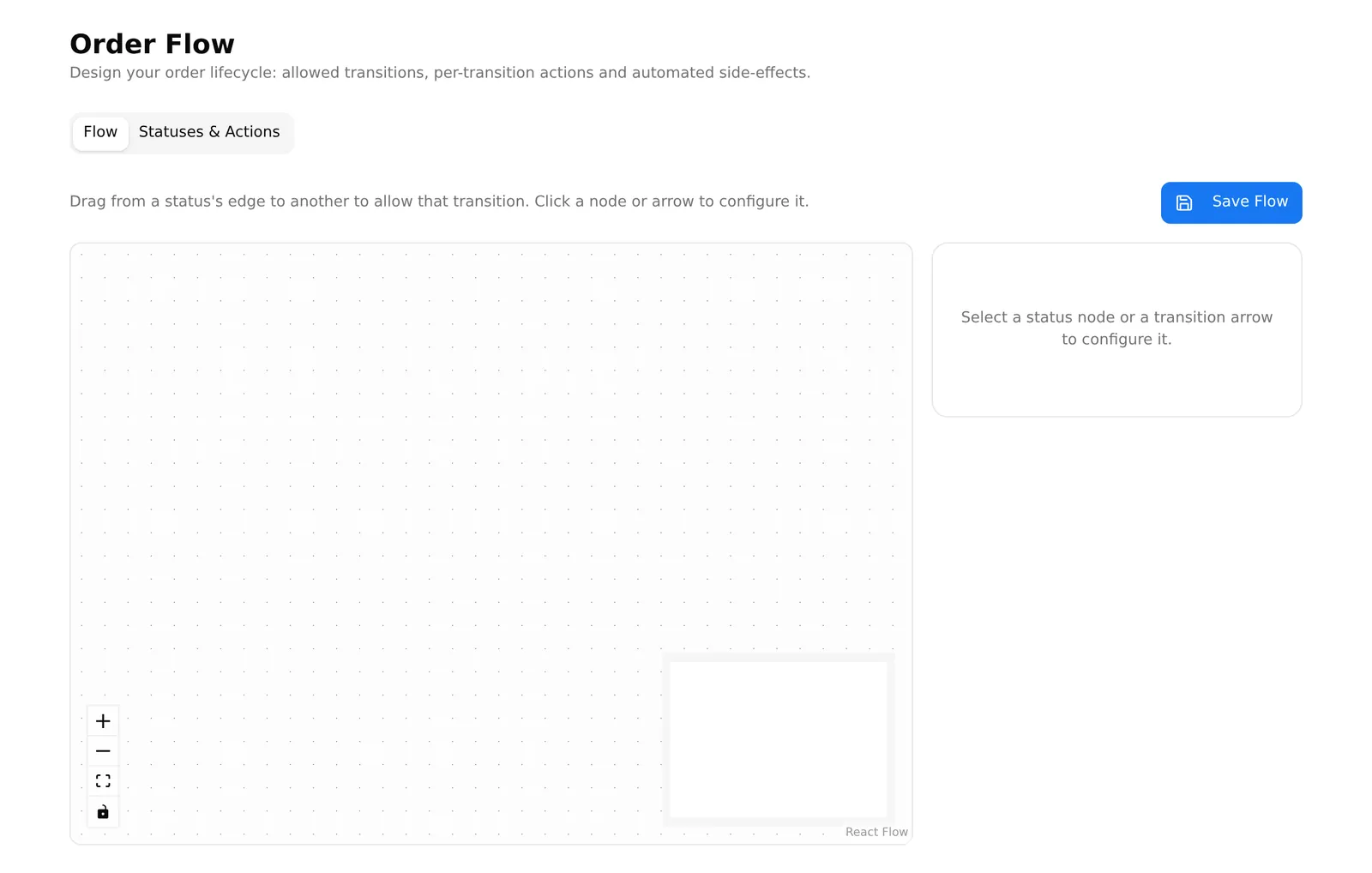
- Drag from the edge of one status to another to allow that move.
- Click a status box to set its colour, and to mark it as the initial status (where new orders start) or a terminal status (where they end).
- Click an arrow to configure that specific move.
- The bin icon on a selected arrow removes that move.
Save Flow stores it. Nothing takes effect until you save.
What you can attach to a move
Selecting an arrow gives you:
Require a reason — the person changing the status must pick or type a reason before it goes through. Worth switching on for Cancelled and Returned.
Trigger actions — what happens automatically on that move:
| Action | What it does |
|---|---|
| Email notification for user | Emails the customer |
| Email notification for admin | Emails you |
| SMS notification for user | Texts the customer |
| SMS notification for admin | Texts you |
| Push notification | Sends an app notification |
| Webhook call | Posts the order to a URL you provide |
| Show in overview | Includes this status on your dashboard summary |
SMS actions need an SMS gateway configured, and they cost money per message. Email needs no setup.
Which status new orders get
The Event Status section maps the three moments an order can be created to whichever status you want:
| Event | When it fires |
|---|---|
| Order create | The customer places the order |
| Order payment success | Their online payment went through |
| Order payment failed | Their online payment was declined |
So you might set order create to Pending, payment success to Confirmed, and payment failed to Pending so you can chase it.
Setting any of these to None leaves the status alone.
Reasons and per-status settings
Under Statuses & Actions, each status has a settings dialog with:
- Status Change Reasons — the dropdown offered when someone sets this status. Add your real reasons: Out of stock, Customer changed mind, Wrong address.
- Reason required on status change — makes that dropdown compulsory.
- Actions — the same list as above, applied to the status rather than to a specific move.
Create New Status adds your own. Use a lowercase name with underscores, like
in_transit — the dashboard shows it capitalised.
How enforcement actually behaves
This is the part worth understanding before you draw anything, because it decides whether a half-finished diagram can lock up your shop.
Enforcement is off until you draw at least one arrow. With no arrows, every status can follow every other, exactly as before.
Once you have drawn arrows, moves between two statuses that are both on your diagram are only allowed if you drew that arrow. Anything else is refused.
Statuses not on your diagram are never blocked. Old orders sitting on a status you have since removed can still be moved, so nothing gets stranded.
The practical warning: if you draw arrows, draw all of them. A diagram with Confirmed → Processing but no Processing → Shipped means nobody can ship anything. Test it on one real order before you rely on it.
Automatic side-effects
Beyond notifications, a transition can carry real operations: restoring stock, booking a courier, or capturing a payment. These run once and only when the order is genuinely in a state where they make sense — so a repeated status change will not book two pickups or refund twice.
Common problems
“I cannot change an order’s status any more.” Your diagram has no arrow for that move. Add it in the Flow tab and save, or delete the arrows to switch enforcement off entirely.
“My new status does not appear on the order list.” You did not save. Use Save Order Flow on the Statuses & Actions tab or Save Flow on the Flow tab.
“The SMS did not send.” Attaching an SMS action does not configure a gateway. See SMS gateways — and note that most gateways report success even when they refuse the message, so check your gateway balance.
“Which status shows on my dashboard?” Only statuses with the Show in overview action.